User Dashboard
Availability: Free + Pro. Free tabs: Overview, My Listings, Reviews, My Claims, Favorites, Profile. The Credits tab shows when Pro is active and credits are on sale, or when the member already has a balance or history. Pro also adds Saved Searches, My Needs and My Responses (see Needs Marketplace).
What it does
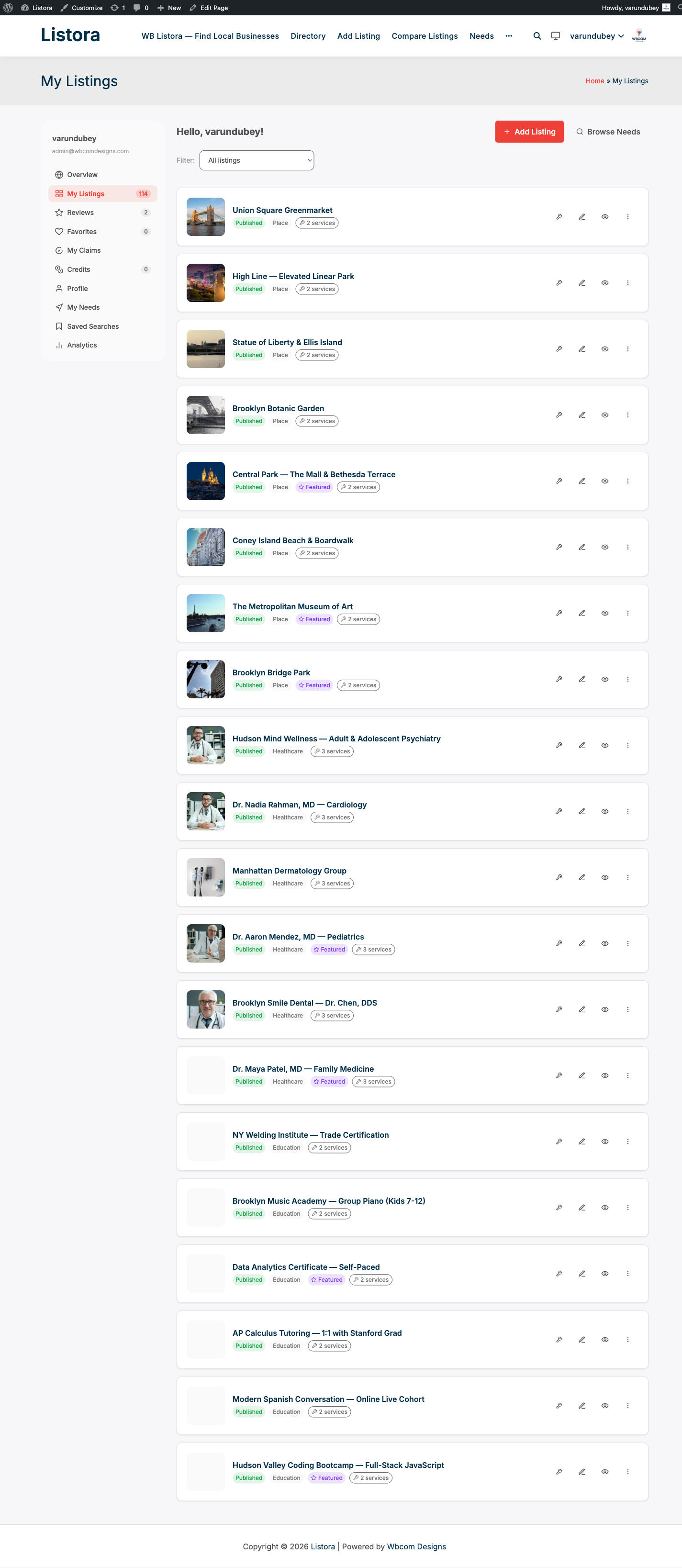
The User Dashboard gives listing owners a self-service frontend panel to manage everything related to their presence in your directory - listings, reviews, favorites, claims, credits, and profile - without needing access to the WordPress admin.
Why you'd use it
- Business owners update their own listing details 24/7, reducing support requests.
- Claimants track their claim status without emailing you.
- Users view all their activity in one place, improving retention.
- The dashboard respects permissions - users only see their own data.
How to use it
For site owners (admin steps)
- The Setup Wizard creates a Dashboard page automatically. If you skipped the wizard, create a new page and add the User Dashboard block.
- Make sure the page is not restricted to logged-in users by your theme or a membership plugin - Listora handles its own login redirect.
- Go to Listora → Settings → General to confirm the Dashboard Page is set correctly.
For end users (visitor/user-facing)
Log in and go to the Dashboard page. The navigation on the left (a row of tabs on small screens) is grouped:
| Group | Tabs |
|---|---|
| Listings | Overview, My Listings, Reviews, My Claims |
| Marketplace | Favorites, plus Pro tabs such as My Needs |
| Account | Credits (when available), Profile |
Each item is a real link, so a member can bookmark a tab or open it in a new tab. Counts sit beside the tab name.
Overview tab
Next steps comes first. It lists what the member can act on right now, each as a link that opens the right place:
- listings that are paused and need credits to go live
- listings waiting for the member to verify their email
- listings awaiting review by the site team
- expired listings that can be renewed
- claims awaiting a decision
- a low credit balance
Below it are clickable stat cards:
| Card | What it shows |
|---|---|
| Active | Published listings |
| Pending | Listings awaiting review |
| Reviews | Reviews the member wrote and reviews left on their listings |
| Saved | Favorited listings |
| Claims | Claims made, with how many are pending |
Clicking a card opens the matching tab. When the site limits listings per role, a Your Listings panel shows the member's limit and how many they have left.
My Listings tab
- Every submission is listed with a status badge: Published, Pending Review, Draft, Expired, Rejected or Deactivated.
- Search my listings finds a listing by name. All statuses narrows the list to one status. Any expiry narrows it to Active, Expiring soon or Expired. Click Apply to filter and Clear to start over.
- The list shows 20 listings per page, with numbered pages below it. Filters and search apply across every page, not just the one on screen.
- Click Edit to update any field, image or description. The edit form opens inline within the dashboard.
- Click Add New to start a new listing without leaving the dashboard.
- Click Renew Now on a listing that can be renewed. Use More to Renew, Deactivate or Reactivate a listing.
- Each listing row shows a Services link. The Services manager opens as a modal dialog: press Esc, click the backdrop, or click the X button to close it (see Services per Listing).
Reviews tab
- Reviews I've Written lists the member's own reviews. A review that is still waiting is labelled Awaiting approval, and one the site team did not publish is labelled Not published. Reviews marked as spam are not listed.
- Reviews on My Listings lists reviews left on the member's listings. Click Reply to answer one, or Edit reply to change an answer. The reply button follows Settings > Reviews > Enable replies.
- The count on the Reviews card and tab matches the reviews listed here, and the mobile app shows the same number.
- Both lists are paged.
Favorites tab
- See listings you've saved.
- Click the listing title to visit it, or Remove to unsave. The card disappears and the count updates straight away.
My Claims tab
- See every claim you've submitted, with a status pill: Pending, Approved, or Rejected.
- Pending claims show an information message while your claim is under review.
- Approved claims show an Edit Listing button - click it to start managing that listing immediately.
- Rejected claims show the rejection reason if one was provided.
Credits tab
The tab appears when the site sells credits, and also stays for any member who has a balance or a history, even if sales are paused.
- Credit Balance shows the balance as
10or12.5, not10.00. A member with a negative balance sees how many credits they owe and that paid actions are paused until they top up. - Buy Credits shows the packs on sale. When purchases are off, the page says so instead of showing an error.
- Transaction History pages through every transaction, not just the latest. Each row has a date, a Type, an Amount and a note. The types read:
| Type | Meaning |
|---|---|
| Top-up | Credits were added. |
| Refund | Credits were given back. |
| On hold | Credits are set aside for something waiting for approval. |
| Hold released | The set-aside credits were released, usually just before they are spent. |
| Spent | Credits were used, for example on a listing or an upgrade. |
Profile tab
- Profile photo shows the member's photo with a Change photo button. WordPress draws the photo from Gravatar, or from the community profile when BuddyPress is active, so the button opens whichever one owns it in a new tab. There is no separate upload here.
- Update display name, email, name, phone (private, never shown on listings), website and bio. Changes apply to the WordPress user account.
- Social Links adds the platforms you want to show.
- Email Notifications has one switch per email, grouped as My listings, Reviews, Claims, Credits and plans and Needs. Everything is on until the member switches it off. Click Save Changes to apply.
- Blocked Members lists members the member has blocked, with an Unblock button.
Tips
- Pin the dashboard URL in your navigation menu so users can find it easily.
- Set the Dashboard page to Wide template or Full Width in your theme for the best layout.
- If a user's listing is expired, the My Listings tab shows a Renew button - make sure your expiration settings are configured under Listora → Settings → Submissions.
- The Credits tab only appears when Pro is active and credits are on sale, or when the member already has a balance or history. A Free-only site does not show it.
- Stat card click-through only works when the matching tab has content. Empty states show a CTA to add a listing or save a favorite.
Common issues
| Symptom | Fix |
|---|---|
| Dashboard shows a login form instead of content | Verify the Dashboard page uses the User Dashboard block, not a shortcode from another plugin |
| "My Claims" tab is missing | Business Claims must be switched on under Listora > Settings > Features |
| Stats show 0 even though listings exist | Clear your site cache - stat cards are cached for 60 seconds |
| User can see other users' listings | Check no third-party plugin is removing the edit_listora_listings capability |