How to Migrate from ListingPro Theme to Listora Plugin
ListingPro is a WordPress theme, not a plugin. That distinction matters. When your directory functionality is tied to your theme, you cannot change your site's design without losing your directory. Listora is a plugin that works with any WordPress theme, giving you full control over both your directory and your design.
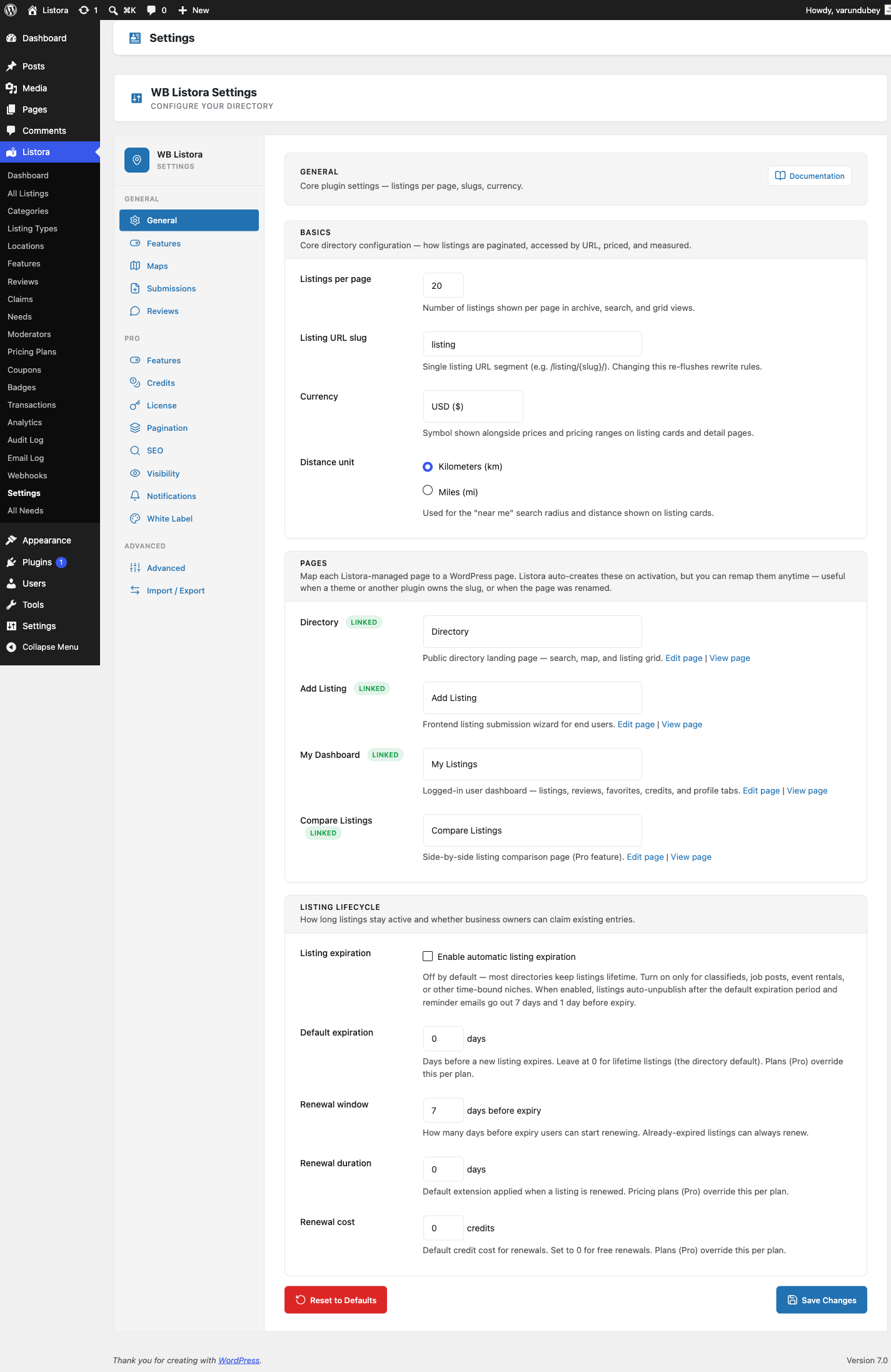
Listora includes a built-in ListingPro migrator that transfers your listings, categories, locations, features, reviews, and images automatically. This guide walks you through the process and explains the benefits of moving from a theme-locked directory to a plugin-based one.
Why Switch from ListingPro to Listora?
Theme Lock-In vs Plugin Freedom
The most significant limitation of ListingPro is theme lock-in. Your entire directory - listings, search, maps, reviews, submission forms - is tied to the ListingPro theme. If you want to redesign your site, use a different theme for branding, or adopt a block theme, you have to either stay on ListingPro or lose your directory functionality.
Listora is a standalone plugin. It works with any WordPress theme - block themes, classic themes, starter themes, or custom themes. Change your theme whenever you want without touching your directory data or functionality.
Beyond Theme Lock-In
There are other practical reasons to consider the switch:
| Aspect | ListingPro (Theme) | Listora (Plugin) |
|---|---|---|
| Architecture | Theme-dependent, all directory logic in theme files | Independent plugin, works with any theme |
| Updates | Theme + directory updates bundled together | Plugin updates independently of your theme |
| Customization | Limited to theme's design options | Full block editor control, CSS custom properties |
| Block editor | Not built for Gutenberg | 11 native Gutenberg blocks |
| Interactivity API | No (jQuery-based) | Yes, no jQuery dependency |
| Listing types | Configurable | 10 pre-built types with custom fields |
| Reviews | Included in theme | Included: stars, helpful votes, owner replies, moderation |
| Claims | Included in theme | Included free |
| Events & calendar | Limited | Calendar block included |
| Business hours | Basic | Weekly schedule with "open now" filter |
| Frontend submission | Theme-specific form | Multi-step wizard block |
| User dashboard | Theme-specific | Dashboard block (works in any theme) |
| Search | Theme-specific | Two-phase FULLTEXT with faceted counts, geo queries |
| Map | Google Maps (theme-rendered) | OpenStreetMap with clustering, near-me, drag search |
| CSV import/export | Basic | Full import/export with column mapping |
| JSON / GeoJSON import | Not available | Included free |
| Schema.org | Theme-dependent | Automatic JSON-LD |
| REST API | Limited | 58 endpoints |
| WP-CLI | Not available | Full CLI commands |
| Price model | One-time theme purchase ($59+) | Free plugin, optional Pro upgrade |
Cost Comparison
ListingPro is a premium theme typically purchased from ThemeForest. While the initial cost includes directory features, you are paying for a theme and a directory bundled together. If you later want a different look, you start over.
Listora Free is available from wbcomdesigns.com. Pair it with any free or premium theme. The Pro version adds advanced features like Google Maps, analytics, pricing plans, and multi-criteria reviews - but the free version includes everything most directories need.
Before You Begin
- Back up your entire site. Since you will eventually be changing themes, a full backup (files + database) is essential. Use UpdraftPlus, BlogVault, or
wp db export. - Keep ListingPro active or its data in the database. The migrator detects ListingPro data by checking for the
listingpost type withlisting-categorytaxonomy and ListingPro-specific meta keys (_lp_listingpro_options). The theme can be active or inactive - the migrator reads from the database directly. - Install and activate Listora. Complete the setup wizard.
- Choose your new theme. Since you are leaving ListingPro, pick a theme you like. Any WordPress theme works - Twenty Twenty-Five, Flavor, Flavor Developer, Flavor Developer, or any commercial theme. You can switch themes after migration.
Step-by-Step Migration Guide
Step 1: Install Listora (Keep ListingPro Active for Now)
Download Listora from the Listora downloads page, upload and activate it alongside ListingPro. Run the setup wizard. At this point, both the theme's directory and Listora exist - they do not conflict since they use different post types.
Step 2: Open the Migration Tool
Go to Listora > Tools > Migration. The migrator scans for ListingPro data by checking for listing posts that have _lp_listingpro_options meta. If detected, you will see a "ListingPro" source card.
Step 3: Preview the Migration
Click the ListingPro source to review what transfers:
- Listings - All
listingposts (published, pending, draft). - Categories -
listing-categoryterms mapped tolistora_listing_cat. - Locations -
listing-locationterms and geo meta mapped to Listora's geo index. - Features -
listing-featureterms mapped tolistora_listing_feature. - Reviews - ListingPro review data migrated to
listora_reviews. - Images - Featured images and gallery images transferred.
- Custom field values - ListingPro meta values mapped to Listora fields.
Step 4: Run the Migration
Click Start Migration. Batch processing handles large directories safely. Duplicate detection prevents double-imports if you re-run.
CLI option for large sites:
wp listora migrate --source=listingpro --batch-size=100
Step 5: Verify Your Data
- Browse Listora > Listings to check migrated entries.
- Open listings to verify categories, locations, features, and reviews.
- Test the map view to confirm geo data transferred correctly.
- Rebuild the search index:
wp listora reindex --all.
Step 6: Set Up Listora Pages
Create (or update) your directory pages using Listora blocks:
- Directory page - Add the Listing Grid and Listing Search blocks.
- Submission page - Add the Listing Submission block.
- Dashboard page - Add the User Dashboard block.
- Map page - Add the Listing Map block.
Step 7: Switch Themes
Once you have verified your Listora pages work correctly, you can switch away from ListingPro to any theme you choose. Your Listora directory continues to work because it is a plugin, not theme-dependent code. Set up your new theme, configure its design settings, and your directory pages will adapt through CSS custom properties.
Step 8: Set Up Redirects
Create 301 redirects from your old ListingPro listing URLs to the new Listora URLs. Use a redirection plugin or add rules to your .htaccess / Nginx config.
What Gets Migrated
| Data Type | Source (ListingPro) | Destination (Listora) |
|---|---|---|
| Listings | listing CPT |
listora_listing CPT |
| Categories | listing-category |
listora_listing_cat |
| Locations | listing-location + geo meta |
listora_geo table + location taxonomy |
| Features | listing-feature |
listora_listing_feature |
| Reviews | ListingPro review meta | listora_reviews table |
| Images | Post thumbnail + gallery | Post thumbnail + gallery |
| Custom fields | _lp_* meta keys |
Listora field index + meta |
What Does Not Get Migrated
- Theme design settings - ListingPro's theme customizer options, color schemes, and layout choices are theme-specific. Your new theme will have its own design system, and Listora adapts through CSS custom properties.
- ListingPro payment/plan data - Paid listing plans and transaction history are theme-specific. Listora Pro has its own pricing plan system.
- Theme-specific widgets and sidebars - These are tied to ListingPro's theme structure and will be replaced by your new theme's layout.
Frequently Asked Questions
Can I migrate after I have already switched themes?
Yes. As long as the ListingPro listing data remains in the database (the listing posts and their meta), the migrator can read it regardless of which theme is active. Even if you deactivate ListingPro, the posts persist in wp_posts.
Will I lose my reviews?
No. ListingPro reviews are stored as post meta. The migrator reads this data and creates entries in Listora's listora_reviews table, preserving ratings, review text, and reviewer information.
Do I need to keep ListingPro installed after migration?
No. Once migration is complete and verified, you can deactivate and delete the ListingPro theme. Your directory data now lives entirely in Listora's system.
How does Listora handle theme compatibility?
Listora uses CSS custom properties that automatically inherit values from theme.json. This means colors, fonts, spacing, and border-radius values from your theme are reflected in Listora's blocks without manual configuration. It works with both block themes and classic themes.
What if I want Google Maps instead of OpenStreetMap?
The free version of Listora uses OpenStreetMap, which requires no API key and has no usage fees. Listora Pro adds Google Maps as an option for sites that prefer it.
Ready to Switch?
Download the free Listora plugin from wbcomdesigns.com and free your directory from theme lock-in. Migrate your ListingPro data with the built-in tool, switch to any theme you want, and keep your reviews, claims, maps, and search - all working independently of your theme choice.