Notifications Settings
The Notifications tab in Listora > Settings is where you decide which emails Listora sends, who receives them, and what they say. Every email, from Free and from Pro, is one row in one list.
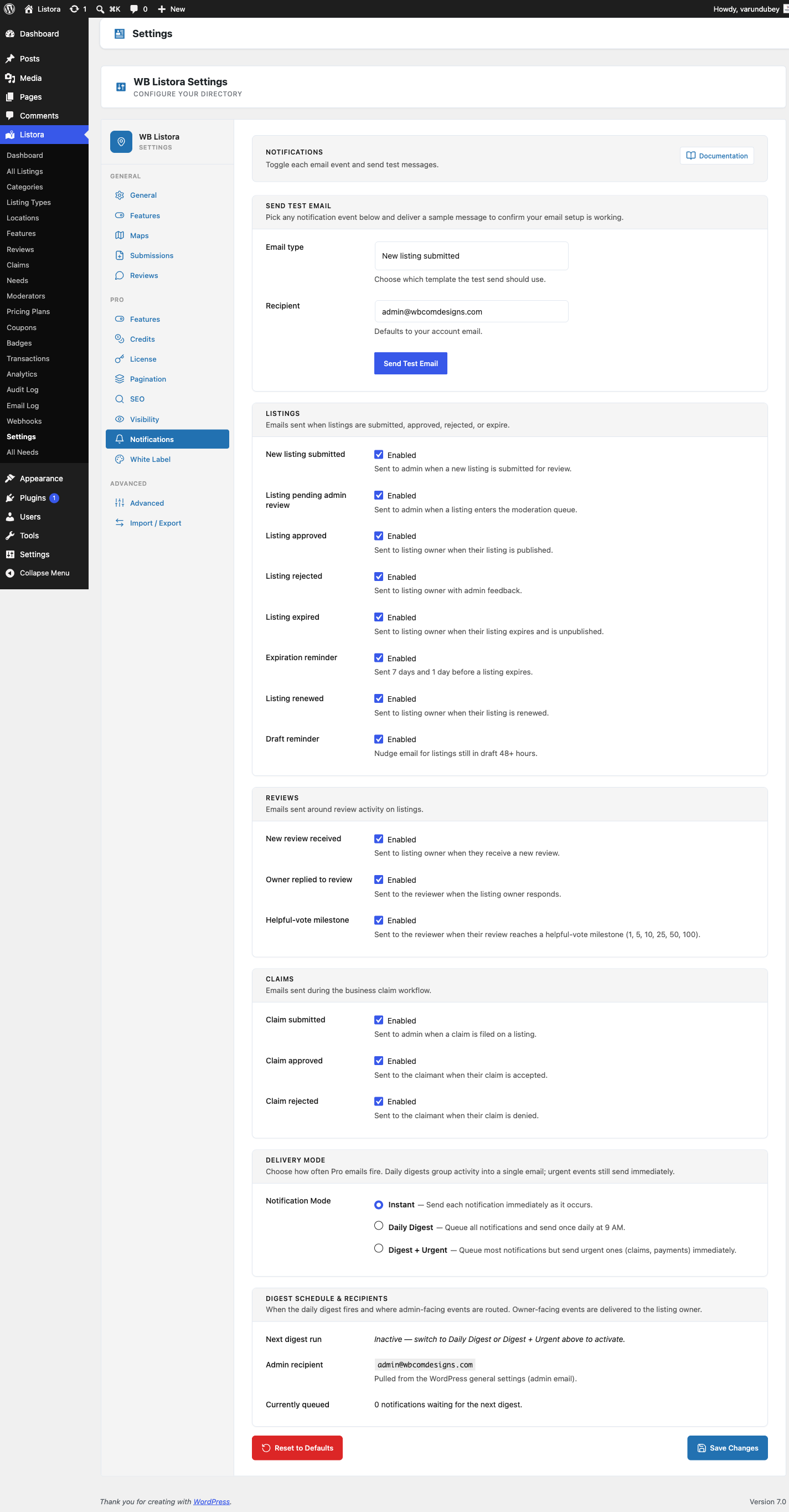
Where it lives
WP Admin > Listora > Settings > Notifications (?page=listora-settings&tab=notifications)
Requires the manage_listora_settings capability.
The email list
Emails are grouped by what they are about: Listings, Reviews, Claims and Account. With Pro active, its emails (credits, plans, Needs) are added to the same list under their own headings.
Each row shows:
- A switch that turns the email on or off.
- The name of the email, with a Customized badge if you changed its wording.
- A short description of when it is sent.
- To: who receives it.
- Edit template and Preview buttons.
Free emails
| To | When it is sent | |
|---|---|---|
| New listing submitted | Site admin | A member submits a listing. |
| Listing pending admin review | Site admin | A listing enters the approval queue. |
| Listing reported | Admins and moderators | A visitor reports a listing. Repeat reports on the same listing are held back for a few minutes, and the listing owner is never told. |
| Listing approved | Listing owner | The listing goes live. |
| Listing rejected | Listing owner | The listing is rejected. |
| Listing expired | Listing owner | The listing expires. |
| Expiration reminder | Listing owner | Shortly before the listing expires. |
| Listing renewed | Listing owner | The listing is renewed. |
| Draft reminder | Listing owner | A draft was left unfinished. |
| New review received | Listing owner | Someone reviews the listing. |
| Owner replied to review | Reviewer | The owner answers their review. |
| Helpful-vote milestone | Reviewer | Their review reaches a number of helpful votes. |
| Reply reminder | Listing owner | Approved reviews are still waiting for a reply. |
| Claim submitted | Site admin | A member claims a listing. |
| Claim approved | Claimant | Their claim is accepted. |
| Claim rejected | Claimant | Their claim is turned down. |
| Verify email to publish | Submitter | Sent only on the email verification path. |
Turn an email off
- Open Listora > Settings > Notifications.
- Find the email and switch it off.
- Click Save Changes at the bottom of the tab.
Emails are on until you switch them off. A switched-off email is not sent and does not appear in the Email Log. The event itself still happens, so Webhooks, the Audit Log and Digest Notifications still see it.
Change what an email says
- Click Edit template on the row. The editor opens under it.
- Change the Subject and the Message. Leave a field blank to keep the built-in text.
- Click a placeholder under Placeholders (click to copy) to copy it, then paste it where you want it, for example
{listing_title}. - Click Save Changes.
To go back to the built-in email, open the editor, tick Go back to the built-in email on save and click Save Changes. That box shows only for emails you have changed.
Your wording applies to every send, whether it comes from the site, a scheduled job or WP-CLI. It also takes priority over a template file in your theme.
Preview an email
Click Preview to see the email with sample details. The preview uses your saved wording, so save first if you have just edited it. Nothing is sent.
Send a test email
At the bottom of the tab, Send a test email sends any email, filled with sample details, to the address you choose.
| Field | What it does |
|---|---|
| The email to send, grouped like the list above. | |
| Send to | Starts as your own address. Change it to test another inbox. |
| Send test email | Sends it and shows the result next to the button. |
If the test arrives, your site can send mail. If it does not, the problem is in your mail setup, such as an SMTP plugin or a mail service. Check the Email Log for the error.
One Save Changes per tab
Every tab saves everything on it with one Save Changes button, including the switches and the email wording on this tab. If you try to leave a tab with edits you have not saved, the browser asks you to confirm.
Reset this tab sets only this tab back to its defaults. Your other tabs keep their settings.
What members can switch off themselves
Members see their own list of emails under Email Notifications on the Profile tab of their dashboard, grouped as My listings, Reviews, Claims, Credits and plans, and Needs. A member who switches an email off stops getting it. See User Dashboard.
The nudge emails (Draft reminder, Expiration reminder, Helpful-vote milestone and Reply reminder) also carry a one-click unsubscribe link in the footer. The link works without signing in and cannot be forged. Developers can change the list with the wb_listora_unsubscribable_events filter.
Listing reports
A report reaches the people who can act on it instead of sitting unread. Switch it off with Listing reported in the list above. Developers can tune it with these filters:
| Filter | Default | What it changes |
|---|---|---|
wb_listora_listing_report_recipients |
Administrators and moderators | Who is emailed |
wb_listora_listing_report_notify_interval |
5 (minutes) |
How often repeat reports on one listing email again |
wb_listora_max_stored_listing_reports |
200 |
How many reports are kept per listing |
Email Log retention
How long sent emails are kept is set on the Email Log page, not here. See Email Log.
For developers
// Is an email switched on?
$is_on = wb_listora_notification_enabled( 'listing_approved' );

// Change the default for one email before the saved value is read.
add_filter( 'wb_listora_notification_default', function ( $default, $event_key ) {
	return 'draft_reminder' === $event_key ? false : $default;
}, 10, 2 );
Add-ons can add their own emails to the list with wb_listora_notification_events, name them with wb_listora_event_labels, and supply sample content for Preview with wb_listora_notification_preview. The preview itself is available at GET /listora/v1/settings/notifications/preview. See the hooks reference.
Related
- Email Log - every email sent, with the full message.
- Email Templates - the template files and placeholders.
- Digest Notifications (Pro) - daily or weekly bundled emails.
- Hooks reference - filter senders, recipients, subjects and bodies.