Services per Listing
Availability: Free + Pro. Per-listing service catalog, pricing, search indexing, and Schema.org OfferCatalog markup are Free. Pro adds cross-listing service discovery (
/services/search), service-level comparison, and booking-CTA hooks viawb_listora_after_service_detail.
What it does
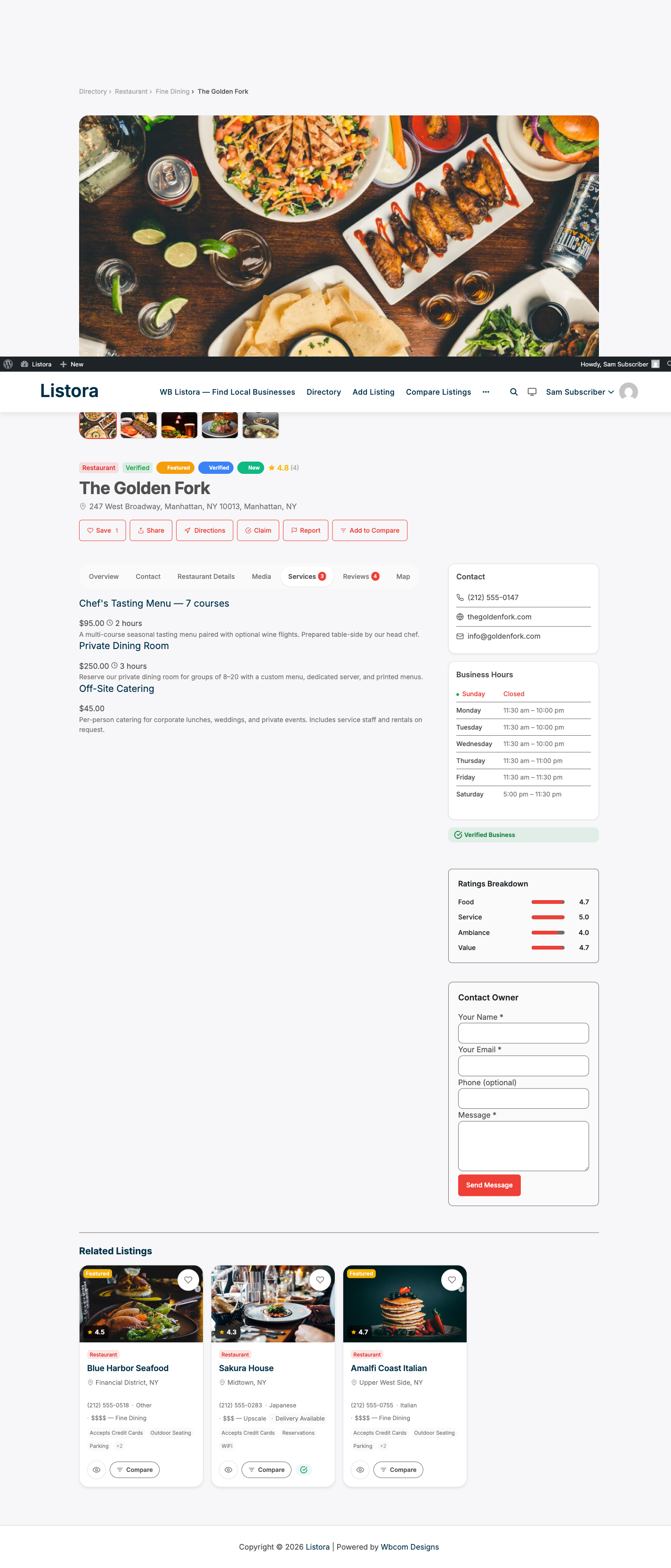
Listing owners can attach a catalog of services to their listing - each with a name, price, duration, and category. Services appear on the listing detail page in a card grid and are indexed for full-text search, so visitors can find listings by the services they offer.
Why you'd use it
- Businesses showcase their service menu directly in the directory (e.g., a spa listing can list "60-min massage - $80").
- Richer listings attract more engagement and give visitors a reason to contact the business.
- Services are searchable - a visitor searching "haircut" can find salons that explicitly list that service.
- Schema.org
OfferCatalogmarkup is added automatically, improving how Google displays the listing.
How to use it
For site owners (admin steps)
- Services are enabled by default - no settings toggle required.
- To create service categories, go to Listora → Service Categories and add your categories (e.g., Treatments, Packages, Consultations).
- Service categories are optional. Listings can have uncategorized services.
- You can add services to any listing directly from the WordPress admin by editing a listing post and scrolling to the Services panel.
For end users (visitor/user-facing)
Adding services from the dashboard:
- Log in and go to your User Dashboard → My Listings.
- Click Manage Services next to the listing you want to update.
- Click Add Service.
- Fill in the service details:
- Name - the service name (e.g., "Deep Tissue Massage").
- Price - price as a number (e.g., 80).
- Duration - duration in minutes (e.g., 60).
- Category - optional service category.
- Description - a brief description of the service.
- Click Save. The service appears immediately on the listing detail page.
Editing or deleting a service:
From the Manage Services panel, click the pencil icon to edit or the trash icon to delete any service.
How services appear to visitors:
Services display in a card grid on the Services tab of the listing detail page. Each card shows the name, price, duration, and category badge. Visitors can browse all services without leaving the page.
Tips
- Use service categories to group related offerings - for example, a clinic might have categories "Consultations" and "Procedures."
- Include a duration even for services without a fixed time - visitors appreciate knowing what to expect.
- Set a price to
0if the service is free or price-on-request - you can note "See website for pricing" in the description. - Services are included in the full-text search index, so adding specific service names improves discoverability in keyword searches.
- Keep service names concise (under 60 characters) - they appear on cards with limited space.
Common issues
| Symptom | Fix |
|---|---|
| Services tab not visible on listing detail | Confirm the listing has at least one published service |
| Services not showing in search results | Wait for the search index to rebuild - it updates when a service is saved; or trigger a manual rebuild with Rebuild Search Index under Listora → Settings → Advanced |
| "Manage Services" link not visible on dashboard | Check the user is the listing owner or has the edit_listora_listings capability |