Creating Directory Page
Creating Your Directory Page
Listora uses WordPress blocks to build directory pages. You can combine blocks in the block editor to create any layout.
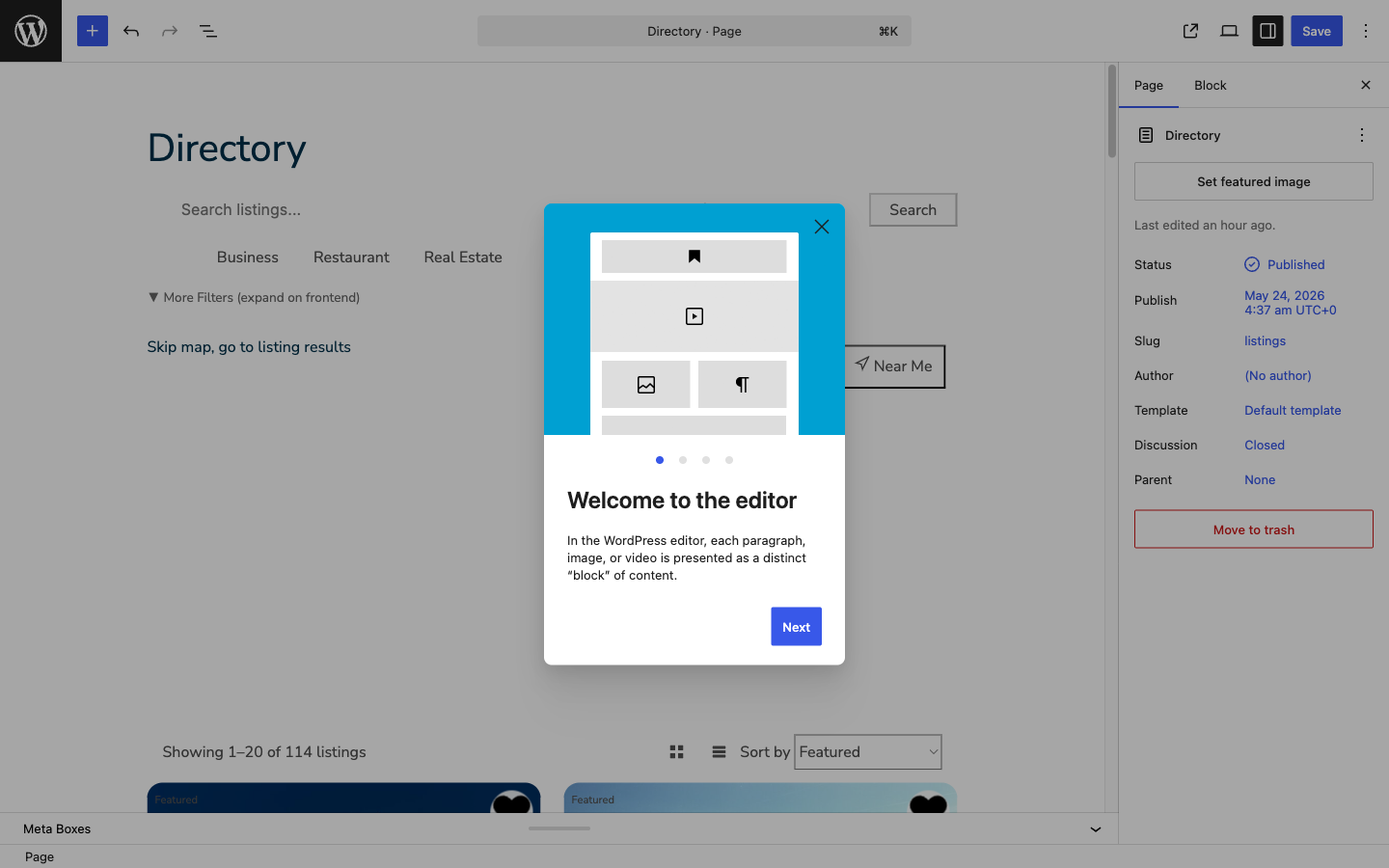
Quick Start: Full Directory Page
- Create a new page (or edit the one the wizard created)
- Add the Listing Search block - provides the search bar with filters
- Add the Listing Grid block below it - displays the listing cards
- Set both blocks to Wide alignment for a wider layout
- Publish the page
Available Blocks
| Block | Purpose |
|---|---|
| Listing Search | Search bar with keyword, location, type filters, and advanced filters |
| Listing Grid | Responsive card grid with sort, view toggle, and pagination |
| Listing Map | Interactive map with markers and clustering |
| Listing Card | Single listing card (for custom layouts) |
| Listing Detail | Full listing detail page (auto-used on single listings) |
| Listing Reviews | Review list with submission form |
| Listing Submission | Frontend listing submission form |
| Listing Categories | Category grid with icons and counts |
| Featured Listings | Featured or top-rated listings in a horizontal carousel |
| Listing Calendar | Event calendar view |
| User Dashboard | User's listing management dashboard |
Layout Examples
Search + Grid (Simple)
[Listing Search - wide]
[Listing Grid - wide, 3 columns]
Search + Grid + Map (Split)
[Listing Search - wide]
[Columns: 65% / 35%]
[Listing Grid - 2 columns] | [Listing Map - 600px]
Category Landing Page
[Listing Categories - wide]
[Listing Featured - wide]
[Listing Search - wide]
[Listing Grid - wide]
Setting as Homepage
- Go to Settings > Reading
- Select A static page
- Set Homepage to your directory page
- Save
Block Settings
Each block has settings in the sidebar:
- Listing Grid: listing type, Per Page, Columns (1 to 6), Default View (Grid or List) and Card Layout (Standard, Compact or Overlay). Under Display, switch the view toggle, result count, sort and pagination on or off. The grid has no default sort setting. Sorting is chosen by the visitor.
- Listing Search: under Search Settings, Layout (Horizontal Bar or Stacked), Pre-filter by Listing Type, Placeholder Text and Default Sort. Under Visibility, Show Keyword Search, Show Location Search, Show Type Filter, Show More Filters and Show Near Me Button.
- Listing Map: Map Height, Default Zoom, Center Latitude, Center Longitude, Marker Clustering, Show Near Me and Show Fullscreen.