White Label
Pro feature. Available in Listora Pro.
Availability: Pro only. Requires Listora Pro. Free sites show Listora branding in the admin interface.
What it does
White label mode removes Listora branding from the admin interface. You can rename the plugin and the admin menu to your own brand name, and optionally hide the author attribution. This is useful when you're building a directory for a client and want it to appear as your own product.
Why you'd use it
- Clients see your brand, not the underlying plugin - strengthening your agency relationship.
- Removes references to "Listora" and "Wbcom Designs" from menus and the Plugins list.
- Requires no code - branding changes are configured from a settings panel.
- The rename applies to both Free and Pro plugin entries in the Plugins list.
How to use it
For site owners (admin steps)
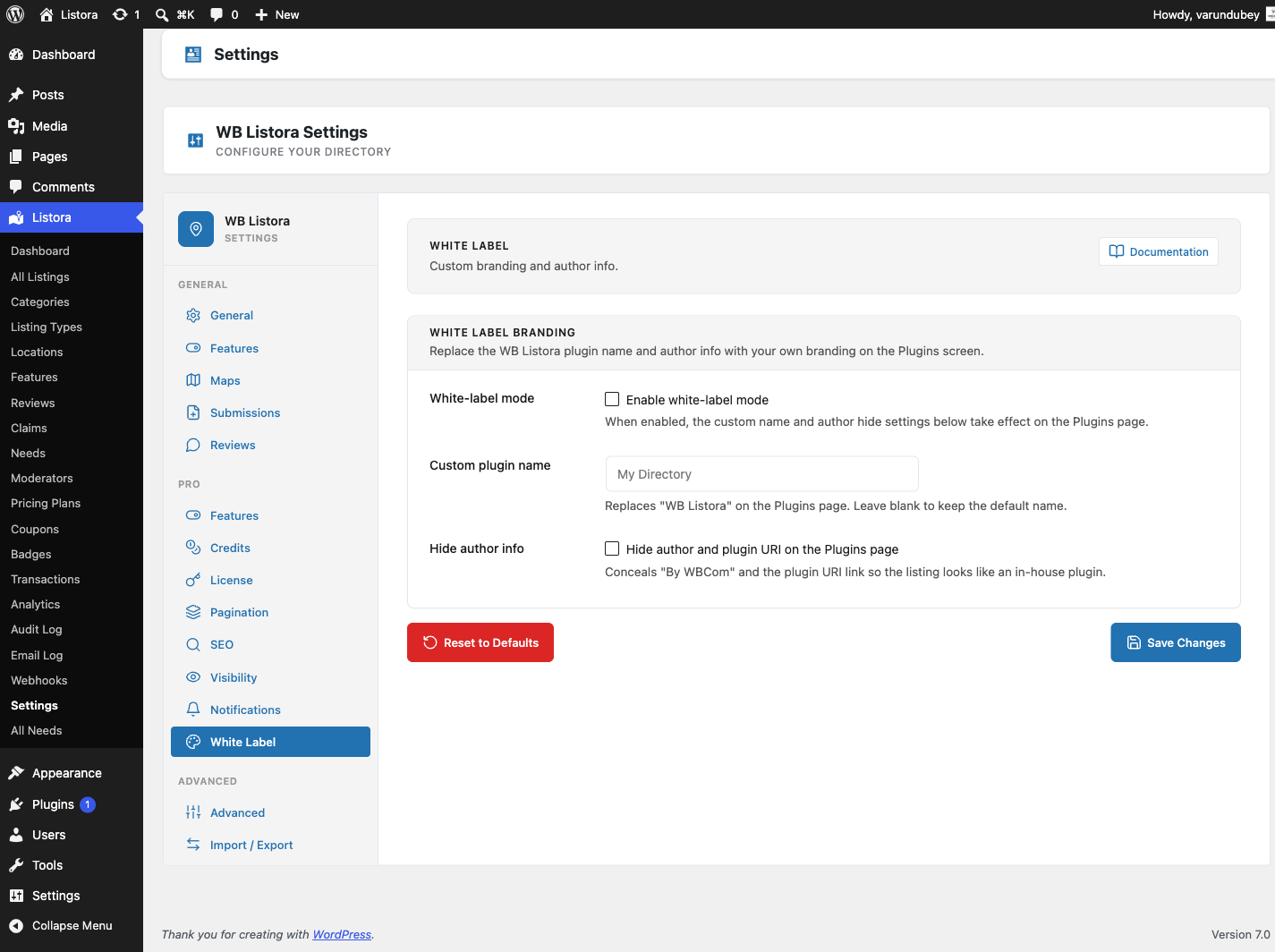
- Enable the feature: Listora → Settings → Features → White Label. The White Label settings tab only appears once this toggle is on.
- Go to Listora → Settings → White Label.
- Toggle Enable White Label on.
- Fill in your custom settings:
- Plugin Name - the name shown in the admin menu and Plugins list (e.g., "My Directory Pro").
- Hide Author - check this to remove the "Wbcom Designs" author link from the Plugins list.
- Save settings.
- Refresh the page. The admin menu label and the Plugins list entries now show your custom name.
What changes:
| Location | Before | After |
|---|---|---|
| Admin sidebar menu | Listora | Your custom name |
| Plugins list - Name | Listora / Listora Pro | Your custom name |
| Plugins list - Author | Wbcom Designs (hidden if toggled) | Hidden |
What does not change:
- Plugin file names and directories (wb-listora, wb-listora-pro) remain unchanged - this is necessary for updates to work correctly.
- CSS class names and JavaScript store namespaces remain as
listora/directory- this affects code only, not the visible UI. - REST API namespace remains
listora/v1.
For end users (visitor/user-facing)
White label affects the admin interface only. The frontend blocks, listing cards, and user dashboard have no "Listora" branding visible to visitors by default.
Tips
- White label is best applied after initial setup and testing. Enable it just before handing the site to a client.
- If a client asks "what plugin is this?", the white label protects your product relationship - but do keep documentation of the underlying plugin for your own reference.
- The plugin file paths (
wb-listora/wb-listora.php) remain unchanged because WordPress auto-updates use the plugin file slug. Renaming files would break updates. - Combine white label with a custom admin color scheme (via WordPress's appearance settings) for a fully branded admin experience.
Common issues
| Symptom | Fix |
|---|---|
| Menu still shows "Listora" after enabling | Refresh the admin page; browser caching may be showing the old label |
| Author still visible in Plugins list | Confirm Hide Author is checked and settings were saved |
| Settings panel not appearing | Confirm Listora Pro is active and the license is valid |