Coupons
Pro feature. Available in Listora Pro.
Availability: Pro only. Requires Listora Pro and Monetization switched on in Listora → Settings → Features. Free sites do not have a coupon system.
What it does
Coupons are discount codes that reduce the credit cost of a listing plan. A member enters a code on the plan step of the submission form. The discount is taken off the price charged when the listing is submitted.
Why you'd use it
- Run limited-time promotions to drive listing submissions.
- Offer referral discounts or partner codes to specific groups.
- Restrict a coupon to specific plans so a 50% discount only applies to your premium tier.
- Set a per-member limit so one person cannot reuse a code.
How to use it
For site owners (admin steps)
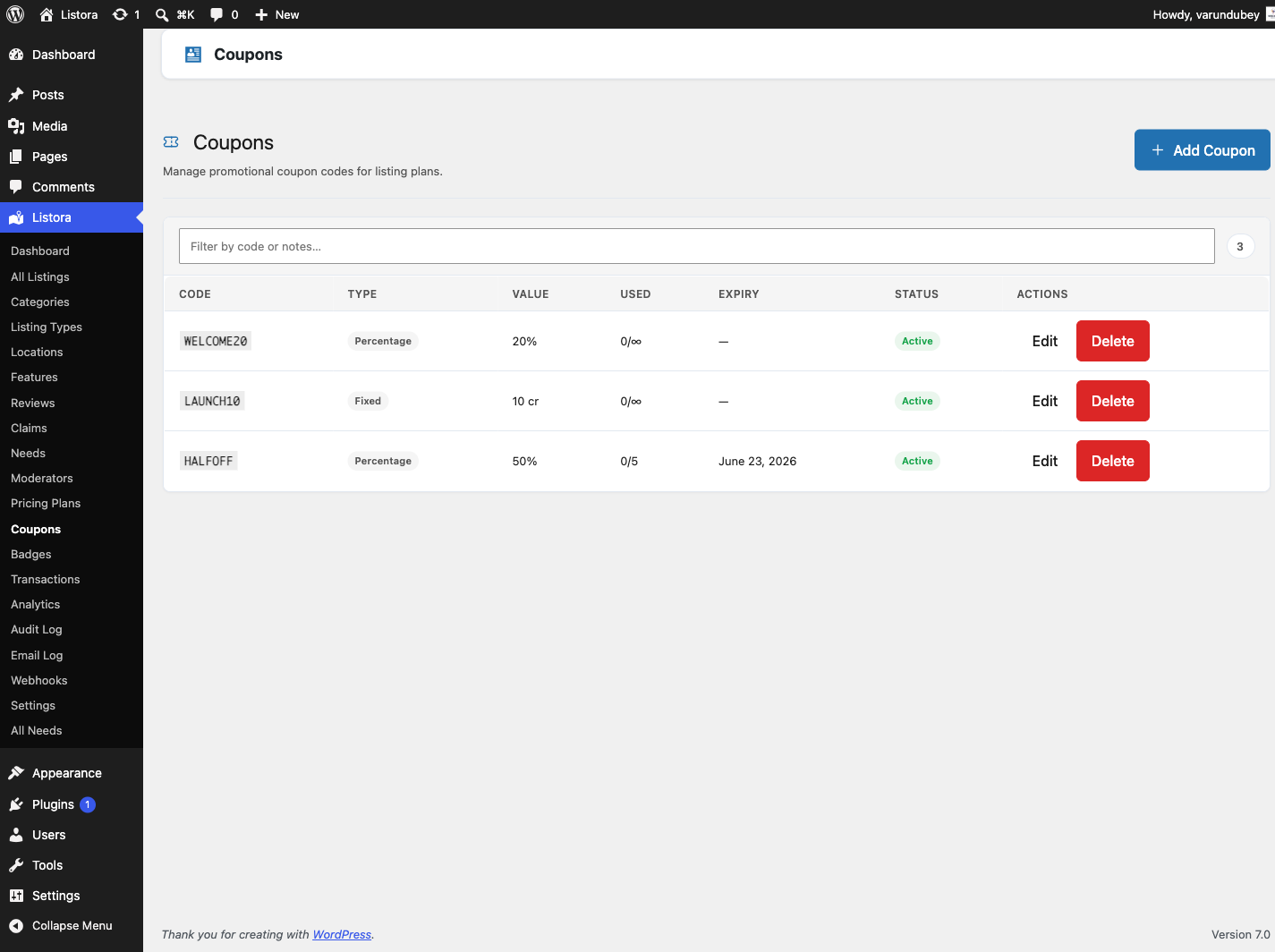
Go to Listora → Monetization → Coupons. The list uses the shared admin table, so you can search codes and filter by view: All, Active, Expired and Switched off.
| Column | What it shows |
|---|---|
| Code | The code, linked to its edit screen. |
| Discount | Written the way a member reads it: "20% off" or "10 credits off". A minimum plan cost shows underneath ("On plans of 20+ credits"). |
| Applies to | The names of the plans the coupon is limited to, or All plans. |
| Used | "3 of 50 used" when there is a total limit, or "3 used · no limit". A per-member limit adds a second line ("1 per member"). |
| Expires | The expiry date, or Never. |
| Status | Active, Expired (past its expiry date) or Switched off. |
| Created | The date the coupon was created. |
Creating a coupon
- Click Add Coupon.
- Fill in the fields:
- Coupon Code - the code members enter, for example
LAUNCH50. Codes are uppercased automatically and must be unique. - Discount Type - Percentage off credits or Fixed credit amount.
- Discount Value - a percentage from 1 to 100, or a number of credits. It must be above zero.
- Usage Limit (total) - how many times the code can be used by everyone.
0is unlimited. - Per-User Limit - how many times one member can use it.
0is unlimited. - Expiry Date - the last day the code works. Leave it empty for no expiry.
- Restrict to Plans - tick the plans the code applies to. Leave all unticked to allow every plan.
- Minimum Plan Cost - the plan must cost at least this many credits.
0is no minimum. - Status - Active or Inactive. Inactive shows as Switched off in the list.
- Admin Notes - internal notes members never see.
- Coupon Code - the code members enter, for example
- Click Create Coupon.
Checking usage
The Used column shows how often each code has been redeemed. Open a coupon and its Usage Log lists each redemption with the member, the plan, the discount and the date.
Switching a coupon off
Edit the coupon, set Status to Inactive and save. Members who enter the code see that it is no longer active.
Deleting a coupon
Use Delete in the row. Redemptions already made stay valid. The code cannot be used again.
For members
- On the Choose your plan step of the submission form, find Have a coupon?.
- Type the code and click Apply.
- If the code is valid for the selected plan, a message shows the discount, for example "Coupon applied! 20% off".
- Continue and submit. The discounted price is the price charged.
A coupon applied on the plan step is taken off the amount charged when the listing is submitted. Saving the listing as a draft charges nothing and does not use up the coupon. A coupon can be used once for each listing.
Tips
- Use uppercase codes. They are easier to share and Listora stores them in uppercase.
- For a launch promotion, set a short Expiry Date and a sensible Usage Limit rather than a permanent unlimited coupon.
- Restrict high-value coupons to your most expensive plan with Restrict to Plans.
- For a code meant for one person, set Per-User Limit to
1and a small Usage Limit. Listora does not generate single-use codes, so make one coupon per recipient if you need that. - To keep a coupon off free plans, set Minimum Plan Cost to at least
1.
Common issues
| Symptom | Fix |
|---|---|
| "Coupon code not found" | Check the spelling, and that the coupon exists in Listora → Monetization → Coupons. |
| "This coupon is no longer active." | The coupon is Switched off. Set its Status to Active. |
| "This coupon has expired." | The Expiry Date has passed. Edit the coupon to extend it. |
| "This coupon is not valid for the selected plan" | Restrict to Plans is set. The member must pick one of the listed plans. |
| "This coupon requires a plan costing at least N credits." | Minimum Plan Cost is set above the cost of the chosen plan. |
| "This coupon has reached its usage limit." | Raise Usage Limit (total) or create a new coupon. |
| "You have already used this coupon." | Per-User Limit has been reached for that member. |