Quick View Modal
Pro feature. Available in Listora Pro.
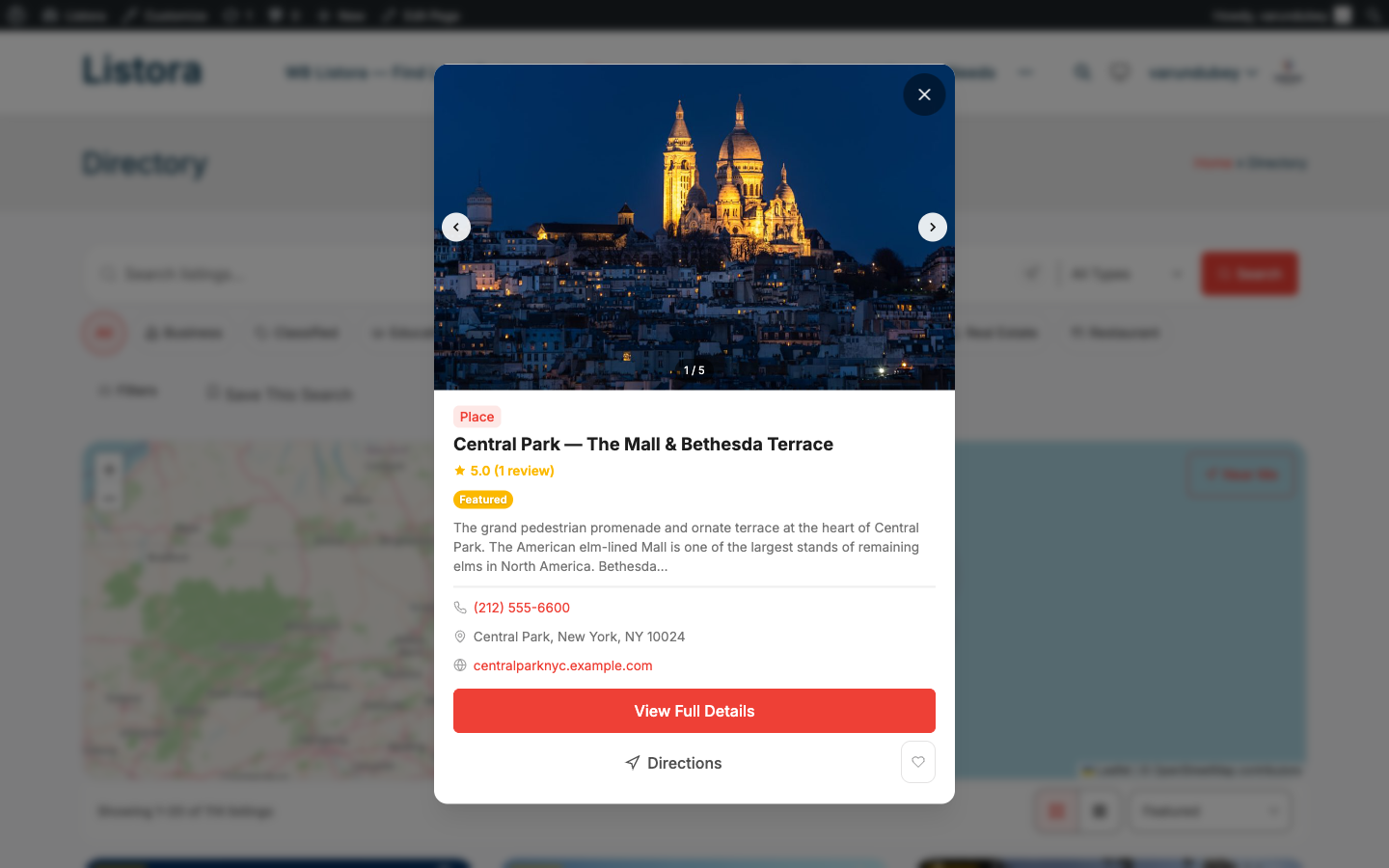
Availability: Pro only. Requires Listora Pro. Let visitors preview a listing in an in-page modal - featured image, title, type badge, rating, excerpt, primary action - without losing their grid scroll position. A small eye-icon button appears on each listing card; clicking opens the modal on top of the page, dismissible with Esc, click-outside, or the close button. Card click and modal launch are independent, so the "open detail page" action stays one click away.
What it is
Browsing a directory grid is friction-heavy: visitors click into a listing, decide it's not what they want, hit back, lose their scroll position, and start over. Quick View lets them peek without commitment.
The implementation:
- A small eye-icon button is injected on each card via the
wb_listora_card_actionshook (priority 5). - A single modal container is rendered once at
wp_footer(therender_modal_containercallback), so the same DOM element serves every card - no per-card modal markup, no memory leaks. - Modal content is fetched via REST when opened - the existing
GET /listora/v1/listings/{id}endpoint, filtered throughwb_listora_rest_prepare_listingso Pro can attach extra fields (Quick View usesfilter_quick_view_response). - Theme-independent styling - the modal uses
.listora-qv-modalclasses with token-driven colors; tested on BuddyX / BuddyX Pro and dark mode. The close button and the gallery previous/next arrows are 44px tap targets (touch-accessible). - Click hierarchy - the entire card surface is clickable for "go to detail", and the eye icon stops propagation so Quick View opens without navigating. Stretched-link overlays don't intercept it.
Why this matters: directories with Quick View enabled see meaningfully lower "back button" bounce-back rates because visitors evaluate from the modal before committing to a full navigation.
How you use it
As a site owner - enable
- Enable the feature: Listora → Settings → Features → Quick View (default: on since 1.1.0 - turn it off if you don't want this UX). Save.
- Verify: browse the directory; every listing card now shows a small eye-icon button alongside the favorite heart and (if enabled) the Compare toggle.
- Test the modal: click the eye icon - modal opens; Esc closes it; click outside closes it; the close button (top-right) closes it. Card click (anywhere outside the eye icon) still navigates to the full detail page.
As a visitor
- Browsing the directory → click the eye icon on any card.
- The Quick View modal opens with the listing's featured image, title, type, rating, excerpt, and a "View Details →" button that opens the full page.
- Press Esc or click outside the modal to dismiss; you return to the same grid scroll position.
Quick View is read-only - to favorite, claim, or write a review, click through to the full detail page via the "View Details" button.
Settings & options
| Setting | Location | Default | Notes |
|---|---|---|---|
| Feature toggle | Settings → Features → Quick View | On | On by default since 1.1.0 - turn off intentionally |
| Modal trigger | (auto, on card) | Eye-icon button | Rendered via wb_listora_card_actions hook |
| Modal mount point | (auto) | wp_footer |
Single shared instance for all cards |
| Modal data source | REST GET /listora/v1/listings/{id} |
- | Cached client-side per session |
Developer hooks worth knowing:
wb_listora_card_actions(action, Free) - the hook Quick View uses to render its trigger; you can hook your own card buttons at different priorities.wb_listora_rest_prepare_listing(filter, Free) - Quick View'sfilter_quick_view_responselistener uses this to add Quick-View-only fields to the response.wb_listora_pro_quick_view_fields(filter) - customize which fields render inside the modal.
Related
- Compare Listings (Pro) - for multi-listing side-by-side evaluation; complements Quick View (peek vs. compare).
- Favorites - also reachable from the card; pairs with Quick View as low-commitment engagement.
- Listing Detail - the full page Quick View previews.
- Developer Reference: REST API - Quick View consumes the single-listing endpoint.