Browse by Category
Availability: Free + Pro.
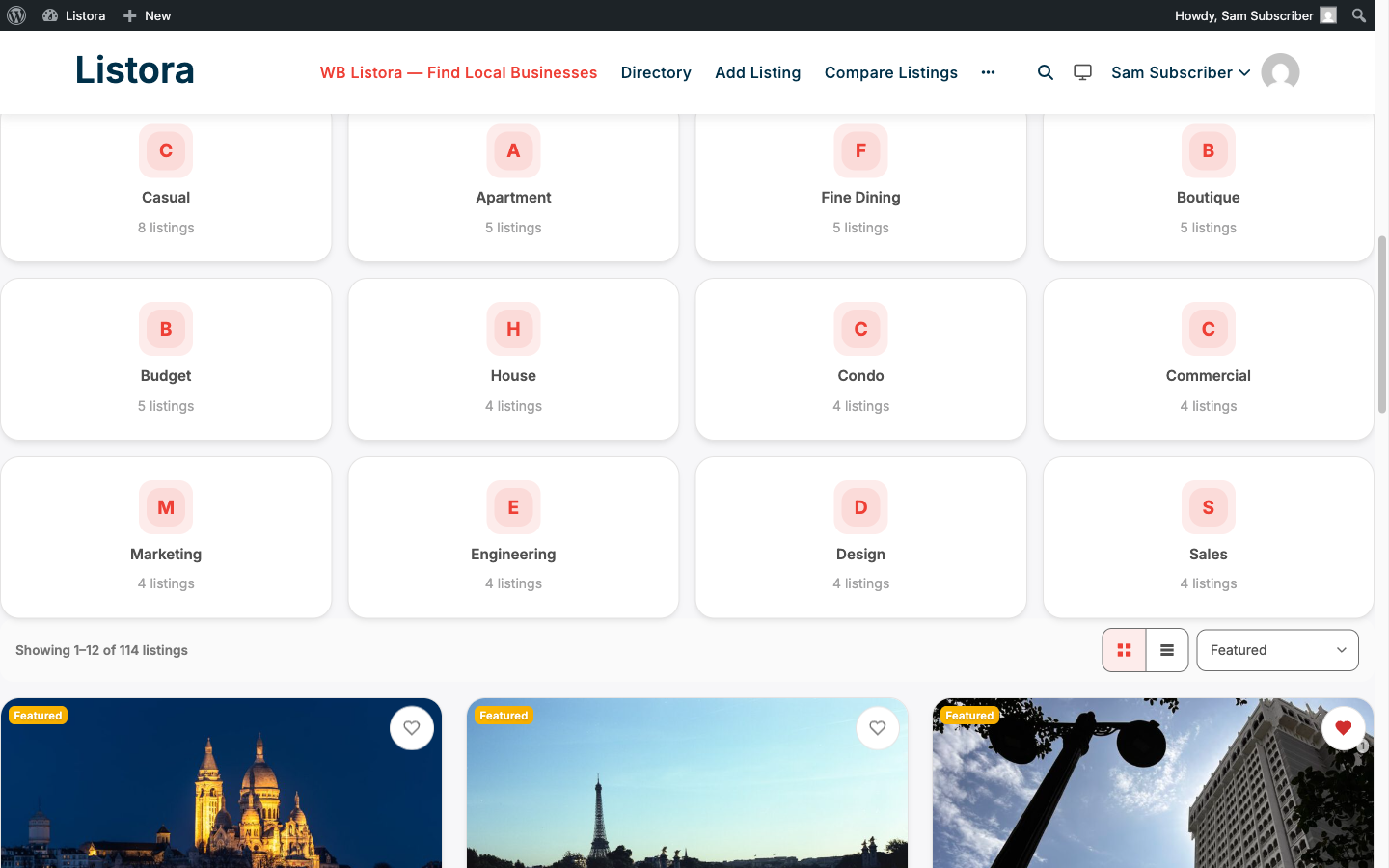
Insert a Categories block on any page to give visitors a beautiful, image-and-icon-led category grid - each tile links to a filtered directory view scoped to that category. Tiles render with type colors, listing counts, and an empty-state CTA when no listings exist yet.
What it is
A directory homepage often needs a "browse" surface in addition to a search surface. The Categories block is that - a row or grid of category tiles that visitors click to jump into a pre-filtered listing view.
Each tile shows:
- The category icon (Lucide icon, configurable per category in the admin)
- The category name (taxonomy term)
- A colored tint sourced from the category's
--cat-color(set per term in the admin) - tile background is a soft 10% tint of the color; on hover the tile lifts with a-2pxtranslate and a primary border (matches the modernized card surface). - The listing count in that category - server-rendered so accurate at page load. Tiles are ordered by that count, busiest first.
- An empty-state path - when a tile has zero listings, it links to the directory home instead of an empty results page.
Hook surface for developers:
do_action( 'wb_listora_before_categories_grid' )andwb_listora_after_categories_gridfire around the block - hook your own banners, ads, or CTAs.apply_filters( 'wb_listora_category_card_data', $card_data, $term_id )lets you modify per-tile data before rendering (e.g. customize the link, swap the icon, override the count).
The block is server-rendered (no client-side fetch) and reuses the same --listora-card-border / --listora-radius-xl / --listora-shadow-md tokens as the other modernized list-container surfaces - automatically dark-mode-aware via the theme bridge.
How you use it
As a site owner - place the block
- Edit a page (your homepage, a "Browse" landing page, etc.).
- In the block editor, search for Listora Categories and insert it.
- Inspector controls:
- Listing Type - restrict tiles to one type's categories (e.g. show Restaurant categories only).
- Columns - how many tiles per row (collapses on small screens).
- Limit - how many tiles show before View all (12 by default).
- Show Count, Show Icon - toggle the listing-count badge and the icon per tile.
- Hide Empty - leave out categories with no listings.
- Configure category colors + icons in the admin: WP Admin → Listora → Categories → edit a term → set Color + Icon (Lucide picker).
As a visitor - what you see
- The block shows the busiest categories first, as a grid of colored tiles.
- When the site has more categories than the block's Limit, a View all N categories button appears under the grid, with N being the real total. Clicking it opens every category, grouped by listing type. Click Show fewer to fold it back.
- Click a tile to land on that category's listing page. To link to the directory with a category pre-filtered instead, use
/listings/?listora_category={slug}. - From the filtered view, click the category chip at the top to clear the filter.
Draft listing types are left out, so their categories do not appear.
In the admin - which types use a category
On Listora > Categories and Listora > Features, a Listing types column shows which listing types offer each term, or None. Above the table, the All types link and one link per listing type narrow the list to one type's terms, with a count on each. The Description, Slug and Image columns are hidden by default so the name has room. Bring them back from Screen Options at the top right.
Which types offer a term is set on each type, in the Listing Type editor. Nothing is stored on the term itself.
Settings & options
| Setting | Location | Default | Notes |
|---|---|---|---|
| Block | Editor → Insert → Listora Categories | - | Server-rendered, no client JS needed for tiles |
| Per-category color | WP Admin → Listora → Categories → edit term | (auto-assigned) | Drives the tile tint + hover border |
| Per-category icon | WP Admin → Listora → Categories → edit term | (none) | Lucide icon picker |
| Per-block columns | Inspector | 4 | Responsive: collapses on small screens |
| Limit | Inspector | 12 | Tiles shown before View all N categories |
| Show count, Show icon | Inspector | On | Hide the count badge or icon per block |
| Hide empty | Inspector | Off | Leave out categories with no listings |
Developer hooks:
wb_listora_before_categories_grid/wb_listora_after_categories_grid(actions) - hook before/after the grid.wb_listora_category_card_data(filter) - modify per-tile data (name, link, count, color, icon, image_url).
Related
- Search & Filters - clicking a category tile navigates to the search with the category pre-filtered.
- Listing Types - categories are scoped per listing type; the block's "Listing Type" control filters which categories appear.
- Featured Listings - pair Categories with Featured for a strong homepage layout.
- Developer Reference: Hooks - full categories hook signatures.