Listing Lifecycle Actions
Availability: Free + Pro. The Feature (promote) action is credit-gated in Pro.
The self-service actions a listing owner can take on their own listings from the My Listings dashboard - Renew (extend expiration), Feature (promote, Pro), Deactivate (hide from directory), Reactivate (restore deactivated), Edit (re-open in the submission wizard), Delete (trash), and Report (flag for admin review). These actions consolidate every state transition a vendor can perform without admin intervention.
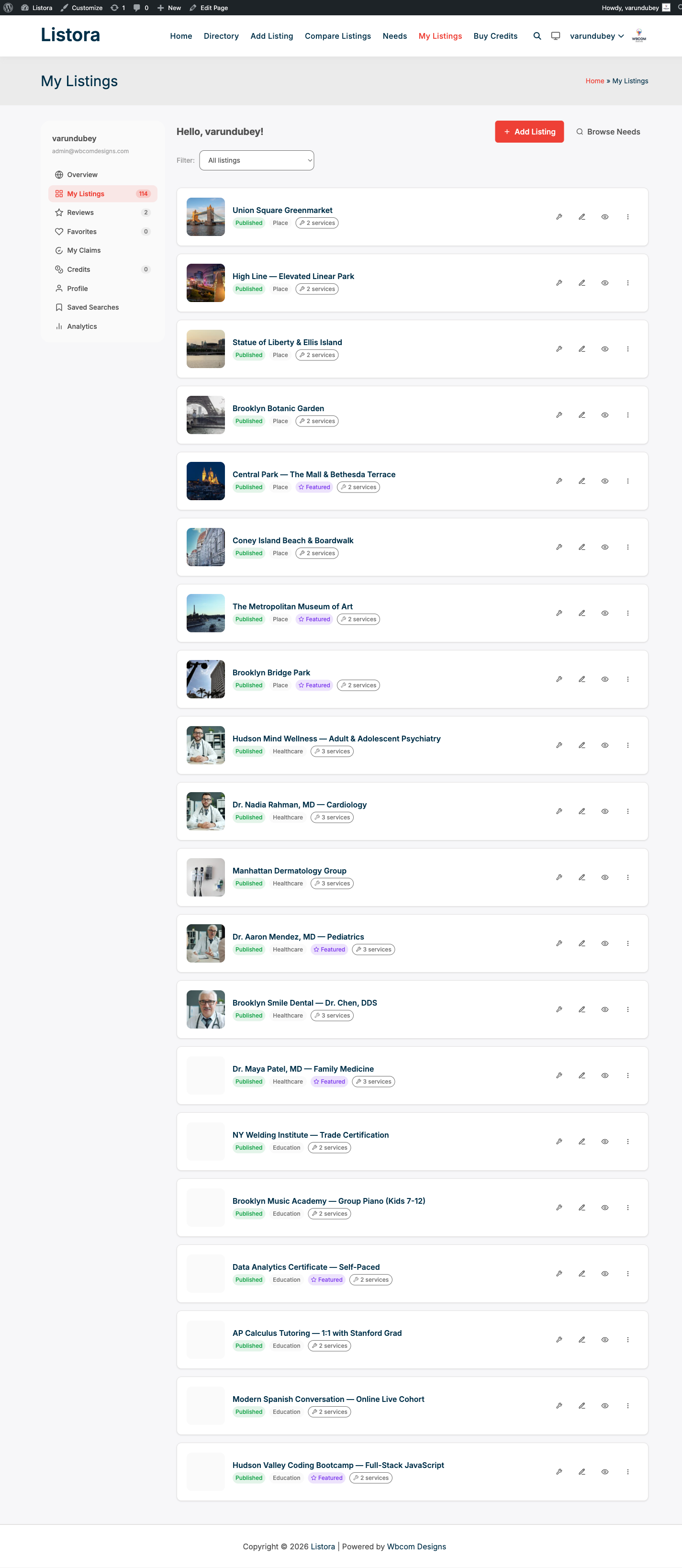
What it is
Every listing transitions through a small state machine. The lifecycle actions on the dashboard are the customer-facing controls for these transitions:
| Action | Status before | Status after | Who can trigger |
|---|---|---|---|
| Renew | publish, listora_expired |
publish with new expiration |
Listing owner |
| Feature (Pro) | publish |
publish (Featured flag set) |
Listing owner with credits / plan |
| Deactivate | publish |
listora_deactivated |
Listing owner |
| Reactivate | listora_deactivated |
publish |
Listing owner |
| Edit | any | any (no transition) | Listing owner |
| Delete | any | (trashed) | Listing owner |
| Report | any | (no transition, admin notified) | Any logged-in visitor |
The same buttons surface in the Listings admin page for admins with edit_others_listora_listings.
How you use it
Renew an expired or expiring listing
- Open My Listings (
/my-listings/). - Find the listing showing Expired or Expiring soon.
- Click Renew.
- The modal shows the renewal cost (credits if Pro Pricing Plans is on, free otherwise) and the new expiration date.
- Confirm - the listing transitions back to
publishwith a fresh expiration.
Renewal pricing comes from /listings/{id}/renewal-quote and the actual renew posts to /listings/{id}/renew. Listings can be renewed at any time within the renewal window (configured on the Pricing Plans).
Deactivate a listing (vendor pause)
- Open My Listings.
- Click Deactivate on the row.
- Confirm in the design-system modal.
- The listing transitions to
listora_deactivated. It disappears from the directory, search results, map markers, and category archives. It still exists in the database - the owner can reactivate any time.
Deactivation does NOT delete reviews, favourites, or claims. It's a soft pause. The View icon disappears from the row when deactivated (since the public URL would 404).
Reactivate a deactivated listing
- Open My Listings.
- The deactivated row shows Reactivate instead of Deactivate.
- Click it. Listing transitions back to
publishand reappears everywhere it was before.
Feature a listing (Pro)
Requires the Pricing Plans feature to be on, the listing to have a plan with featured-rotation entitlement (or credits to spend), and featured_listings toggle enabled.
- Open My Listings.
- Click Feature on a published listing.
- The modal shows the cost (credits) and the duration the feature flag stays active.
- Confirm. The listing immediately joins the
listing-featuredblock's rotation and gets the Featured badge on its card / detail page.
See Featured Listings for the full Featured rotation logic.
Edit an existing listing
- Open My Listings.
- Click Edit on the row.
- The submission wizard re-opens with all fields pre-populated.
- Make changes, save. Status transitions depend on your Settings → Submissions → Edited submissions flow:
- Auto-publish edits → goes straight back to
publish. - Re-moderate edits → goes to
pendinguntil admin re-approves.
Delete a listing
- Open My Listings.
- Click Delete on the row.
- Confirm. The listing transitions to
trash(standard WordPress behavior).
Trashed listings disappear from the directory but stay recoverable for 30 days via WP Admin → Listings → Trash. After 30 days WordPress permanently deletes them.
Report a listing (any logged-in visitor)
- Open any listing detail page.
- Click Report in the action bar.
- Pick a reason (spam, inappropriate, wrong category, duplicate, etc.) and optionally add a note.
- Submit. Listing owner is NOT notified. The report enters the admin Reports queue (Listora → Reports).
REST endpoints
Every action above maps to a single REST route. See REST API for full parameter detail.
| Action | Endpoint | Method |
|---|---|---|
| Renewal quote (pricing) | /listings/{id}/renewal-quote |
GET |
| Renew | /listings/{id}/renew |
POST |
| Deactivate | /listings/{id}/deactivate |
POST |
| Reactivate | /listings/{id}/reactivate |
POST |
| Feature (Pro) | /listings/{id}/feature |
POST |
| Report | /listings/{id}/report |
POST |
| Edit | /listings/{id} |
PUT |
| Delete | /listings/{id} |
DELETE |
Permissions
Every action checks the user's relationship to the listing:
- Owner-only (Renew / Feature / Deactivate / Reactivate / Edit / Delete) →
post_author === current_user_idORedit_others_listora_listings. - Public (Report) →
is_user_logged_in()only. Guests can't report.
Admins with edit_others_listora_listings can do any of these from the Listings admin page bypassing the dashboard.
Hooks
Every transition fires a before_ filter (return WP_Error to abort) and after_ action:
wb_listora_before_renew_listing/wb_listora_after_reactivate_listing/wb_listora_after_deactivate_listingwb_listora_listing_status_changed($post_id, $new_status, $old_status) - single canonical listener point for any state transition. Free's Notifications dispatcher hooks here so approve / reject / expire / renew emails fire from one place.
Full list at Hooks reference.
Related
- User Dashboard - the My Listings page that hosts these actions.
- Featured Listings - the Feature action's downstream rotation.
- Pricing Plans (Pro) - credits + plans that gate Renew / Feature pricing.
- Notifications Settings - emails fired on each transition.
- Moderation Queue - where rejected / reported listings go for admin review.
- REST API - every endpoint above.