Listing Types
What it does
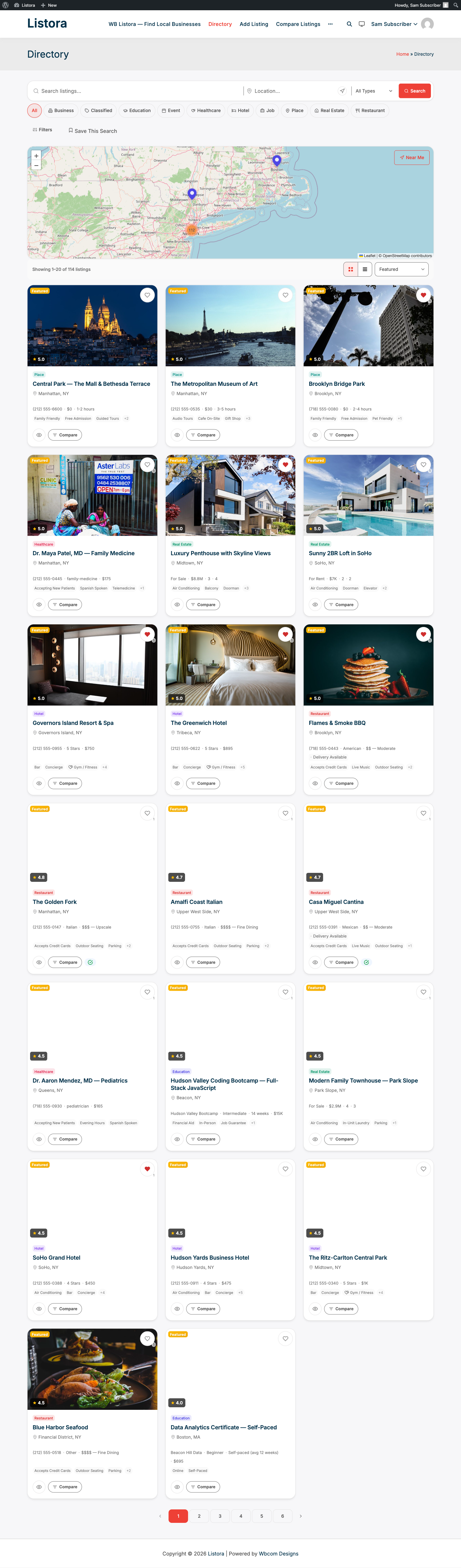
Listing types define the shape of your directory. Each type determines which fields appear on submissions, what schema markup is output for SEO, and what filters are available in search. You can use the built-in types or create completely custom ones.
Why you'd use it
- A restaurant directory needs cuisine, price range, and hours fields. A real estate directory needs bedrooms, square footage, and price. Listing types give each category its own fields.
- Schema.org markup per type improves how Google displays your listings in search results.
- Separate types mean visitors filter by the right attributes - restaurant visitors don't see hotel amenity checkboxes.
- You can create as many custom types as your directory needs.
How to use it
For site owners (admin steps)
Using built-in types:
- Go to Listora → Listing Types.
- The built-in types are listed with their Status (Active or Draft), field count and listing count.
- Click Edit on any type to change its fields and settings.
A Draft type is hidden from members: it does not show in the directory's type chips or the Add Listing form. Switch it to Active when it is ready.
Built-in types:
| Type | Schema.org |
|---|---|
| Business | LocalBusiness |
| Restaurant | Restaurant |
| Hotel | Hotel |
| Real Estate | RealEstateListing |
| Healthcare | Physician |
| Education | Course |
| Event | Event |
| Job | JobPosting |
| Place | TouristAttraction |
| Classified | Product |
Creating a custom type:
- Go to Listora → Listing Types and click Add New Type.
- Set the type name, icon, color, and Schema.org type. A new type starts as Draft.
- Add field groups using the visual builder. A field group is a section (e.g., "Contact Info", "Hours").
- Inside each group, add individual fields. Supported field types:
- Basic: Text, Textarea, Number, Email, Phone, URL
- Choice: Select, Multi-Select, Checkbox, Radio
- Date & Time: Date, Time, Date & Time
- Media: Gallery, File Upload, Video
- Location: Map Location
- Structured: Business Hours, Social Links, Price Range
- Tick the categories and features the type should offer. Leave all unticked to offer every one.
- Configure type settings: enable or disable map, reviews, and submissions for this type, then set Status to Active.
- Click Save Type.
Modifying an existing type:
- Go to Listora → Listing Types and click the type name.
- Add, remove, or reorder fields in the visual builder.
- Save. Existing listings of that type keep their saved data; any removed fields no longer appear on new submissions.
Deleting a type:
- On Listora > Listing Types, open the ... menu on the type and choose Delete....
- If listings use the type, choose the type they should become under Move listings to and click Move listings and delete type. Their details stay, and fields the new type does not have are hidden, not deleted.
- If no listings use it, click Delete type.
Listings are always moved first, so none is left without a type. See Listing Type Editor for every setting.
Tips
- The Setup Wizard lets you pick which of these types are Active (see Setup Wizard). Editing a built-in type is faster than building one from scratch.
- Use the Event type for time-limited listings (concerts, pop-up markets). The date fields power the Listing Calendar block.
- Assign a unique color to each type - it appears on listing cards and map pins, helping visitors distinguish types at a glance.
- If you remove a field from a type, the stored data for that field is not deleted from the database. If you re-add the same field later, existing data will reappear.
- Custom types support the same search filters as built-in types. Price Range, Rating, and Feature filters are available on any type.
Common issues
| Symptom | Fix |
|---|---|
| New type not appearing in submission form | Clear the page cache; new types register on the next request |
| Custom field not saving | Check the field has a unique key - duplicate keys within a type cause the latter field to be ignored |
| Schema.org type not appearing in Google Search Console | Schema markup requires the listing to be published and indexed; allow up to a week for Google to crawl |
| A type is missing from the directory or the Add Listing form | Check its Status. A Draft type is hidden from members until you set it to Active. |
| Deleting a type asks where to move listings | By design. Pick the type the listings should become. |