Saved Searches
Pro feature. Available in Listora Pro.
Availability: Pro only. Requires Listora Pro. Free sites include the Favorites feature for bookmarking individual listings.
What it does
Logged-in visitors can save any search - keyword, location, type, filters - and receive a daily email alert when new listings match those criteria. Saved searches appear in the User Dashboard for easy management.
Why you'd use it
- Users who save a search come back to your directory when they receive alerts, driving repeat traffic.
- Buyers and researchers get automatic updates without checking your directory manually.
- Alert emails link directly to matching new listings, shortening the path to contact.
- Saved-search links and alert emails open your site's own directory page with the current filter names, not a fixed
/listings/address. - Users feel the directory is working for them, increasing satisfaction.
How to use it
For site owners (admin steps)
Saved searches are off on a fresh install. Switch on Saved Searches & Alerts under Listora > Settings > Features to enable them.
How alerts are sent: A daily Action Scheduler job (wb_listora_pro_saved_search_alerts) runs once per day. It checks all saved searches against listings published in the last 24 hours and sends an email for any matches. (Action Scheduler is vendored in Free as of 1.0.5 - Pro consumes Free's copy.)
Email template: Alerts use the template at templates/emails/saved-search-alert.php. Override it at {theme}/wb-listora/emails/saved-search-alert.php for custom branding.
Disabling alerts for a specific user: There is no admin toggle per user. If a user no longer wants alerts, they disable them from their own dashboard.
For end users (visitor/user-facing)
Saving a search:
- Run a search on your directory page - enter keywords, set filters, select a location.
- After results load, a Save this search button appears below the search bar.
- Click the button.
- Enter a name for the saved search (e.g., "Italian restaurants in Brooklyn").
- Toggle Email alerts on or off.
- Click Save. The search is stored in your account.
Managing saved searches:
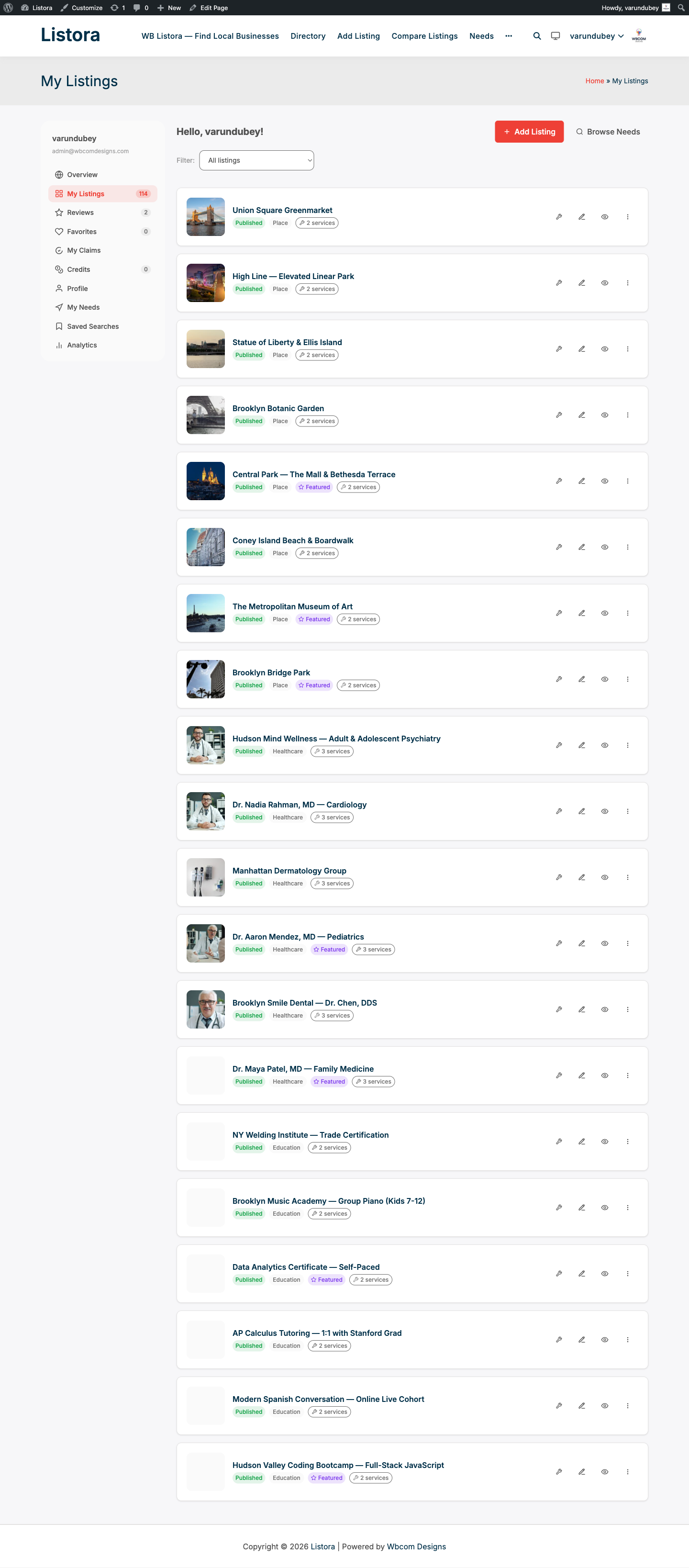
- Go to User Dashboard.
- The dashboard navigation includes a Saved Searches section (added by Pro).
- Each saved search is listed with its name and alert status.
- Toggle email alerts on or off per search.
- Click Delete to remove a saved search entirely.
Receiving alerts:
When new listings match your saved search criteria, you receive an email with a summary and direct links to the matching listings. Alerts are sent once daily - not in real time.
Tips
- Encourage users to save searches during onboarding. A single saved search creates a recurring reason to return to your site.
- The alert email links to individual listing pages - make sure your listing detail pages load quickly and look good on mobile.
- Saved searches respect all active filters: type, category, location radius, price range, rating. The more specific the search, the fewer (but more relevant) alerts a user receives.
- REST endpoint:
GET /listora/v1/saved-searchesreturns the current user's saved searches.POST /listora/v1/saved-searchescreates a new one.DELETE /listora/v1/saved-searches/{id}removes one. Seedocs/REST-API.mdin the Pro plugin root. - Saved search data is stored in user meta (
_listora_saved_searches). It is not tied to thelistora_saved_searchesdatabase table (which is reserved for a future relational index).
Common issues
| Symptom | Fix |
|---|---|
| "Save this search" button not appearing | Confirm the user is logged in and Listora Pro is active |
| Alerts not arriving | Check the Action Scheduler queue at Tools → Scheduled Actions and search for wb_listora_pro_saved_search_alerts. If it's stuck in failed or in-progress, click Run to retry. |
| Alerts sending for old listings | The alert checks listings published in the last 24 hours based on post_date |
| Saved Searches section missing from dashboard | Confirm Listora Pro is active and the license is valid |