Listing Type Editor
Availability: Free + Pro.
The admin page where you create, edit, and delete listing types - Restaurant, Hotel, Real Estate, Job, Event, anything else your directory needs. Each type has its own icon, schema mapping, and custom field set. The Type Editor is distinct from the Listing Types getting-started guide: the guide explains the CONCEPT; this page is the admin SURFACE where you manage them.
What it is
Listora ships with the listing-type system as a first-class concept: every listora_listing post belongs to exactly one type, and that type determines:
- Which custom fields appear in the submission wizard.
- Which Schema.org type the JSON-LD on the detail page emits.
- Which default icon appears on cards / map markers.
- Which filterable fields show up as facets on the search block.
- Whether members can see and use it at all (Active or Draft).
- Which demo pack seeds matching listings when you run
wp listora demo seed --pack={slug}.
The Type Editor is where you configure all of that. It's the "schema-design" surface for the directory.
Where it lives
WP Admin → Listora → Listing Types (?page=listora-listing-types)
Requires the manage_listora_types capability.
The list view
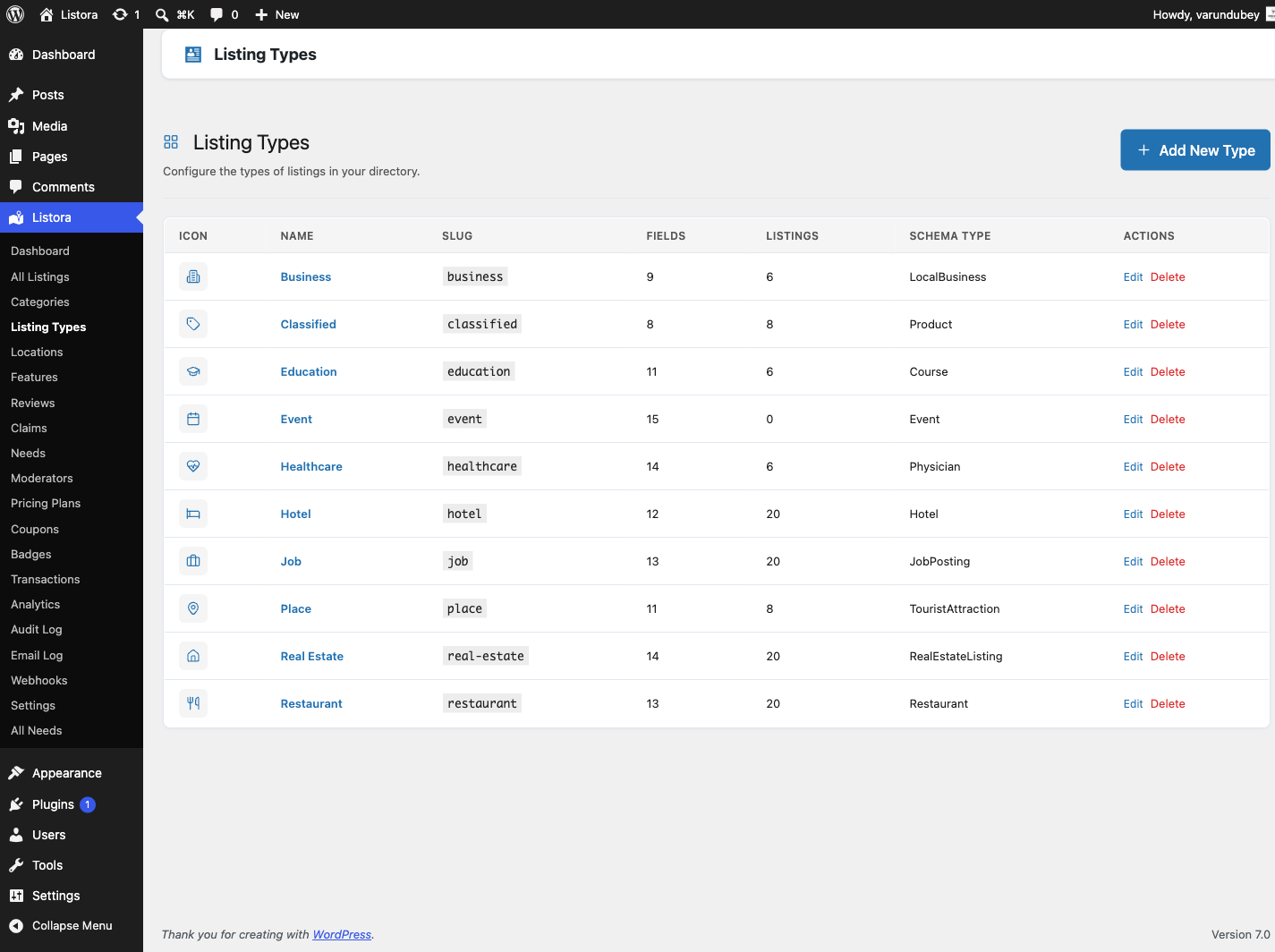
Each row shows the type's icon and name, its Status, how many Fields it has, how many Listings use it, and the Schema.org type under Search engines see. Badges next to the name flag things worth a look:
- Default marks the type that new submissions start with.
- No categories means members can submit this type but its listings will not be filed under any category.
- None yet in the Fields column means the type has no fields.
Actions on each row:
- Edit opens the editor for that type.
- Delete... (behind the ... menu) opens a panel that explains what will happen. See Delete a type.
Add New Type in the page header opens an empty editor.
Draft and Active
Every type is either Active or Draft. A Draft type is hidden from members while you set it up: it does not appear in the directory's type chips, the Add Listing form or the Browse Categories block, and members cannot submit it. Staff who can manage types still see it. A new type starts as Draft. Switch it to Active under Type settings > Status when it is ready.
The editor
The editor is one page. The fields you build take the main area. Below them sit three cards, and Type settings is in the sidebar. Click Save Type at the top to save everything, and Back to Types to leave. If you leave with unsaved changes, the browser asks you to confirm.
Fields
Fields are organised in groups. A group is a section on the form, such as Contact Info or Hours.
- Add Group adds a section. Use Rename group or Delete group on a group's header.
- Add Field adds a field to a group.
- Each field row shows its type and whether it is required or shown on the card. Edit field, Delete field, Move up and Move down are always visible on the row, so you do not need to hover to find them.
Edit field opens the field's settings:
| Setting | What it does |
|---|---|
| Label | The name members see. |
| Key | The internal name. Keep it unique within the type. |
| Type | The kind of input: text, number, select, date, business hours, gallery, map location, and so on. |
| Placeholder and Help text | Hints shown on the form. |
| Options | The choices, for choice fields. |
| Required | The form will not submit without it. |
| Searchable | The field's value is searched by keyword search. |
| Filterable | The field appears as a filter in the search block. |
| Show on Card | The field's value appears on the listing card. |
Deleting a field removes it from the form. Values already saved on listings stay in the database, so adding the same field back brings them back.
Categories and Features
Two cards sit under the fields.
- Categories: the categories this type offers. Leave every box unticked to offer all of them.
- Features & Amenities: the features this type offers. None ticked means every feature is offered, so existing types are unaffected until you narrow one. This stops a Jobs page offering classified-ad amenities.
Each card has one search box (Find a category or Find a feature) and a Selected only tick box, with a count such as "3 of 40 selected". With many categories you search and tick instead of scrolling a long list. Ticking Selected only never blocks saving.
Review criteria
Review criteria sets what reviewers rate this type on, instead of the generic Quality, Service and Value. Use + Add Criterion and give each a key and a label. Leave it empty to use the defaults.
Type settings
| Setting | What it does |
|---|---|
| Status | Active: members can submit and browse it or Draft: hidden from members. |
| Name | The label shown everywhere, such as "Restaurant". |
| Slug | Generated from the name and cannot be changed after the type is created. |
| Icon and Color | Shown on cards, chips and map pins. The icon picker offers the icons the front end can draw. |
| Schema.org Type | The type search engines see in the listing's structured data. Pick the closest match. |
| Map enabled, Reviews enabled, Frontend submission, Services enabled | Turn those features on or off for this type. Saved services are hidden, not deleted, when you turn services off. |
| Default for new submissions | Pre-selects this type on the Add Listing form. Only one type is the default at a time, so turning it on here turns it off elsewhere. Ignored if Frontend submission is off. |
| Listing expires after (days) | 0 means never. |
How you use it
Add a new type
- Click Add New Type.
- Fill in Name, then pick an Icon, Color and Schema.org Type.
- Under Fields, click Add Group, then Add Field to build the form. For a coworking space you might add "Hot Desk Rate" and "24/7 Access".
- Tick the categories and features this type offers.
- Leave Status on Draft while you test, then switch it to Active.
- Click Save Type.
Edit an existing type
Click Edit on a row, make your changes and click Save Type.
Delete a type
- On the list, open the ... menu on the row and choose Delete....
- If no listings use the type, click Delete type. Its fields and settings are deleted.
- If listings use it, the panel says how many and asks where they go. Choose a type under Move listings to, then click Move listings and delete type.
Moved listings keep their details. Fields the new type does not have are hidden, not deleted. Moving happens before the delete, so no listing is ever left without a type. After deleting, the page tells you how many listings were moved.
Developers: the REST route DELETE /listora/v1/listing-types/{slug} answers 409 with listora_type_has_listings when listings use the type and reassign_to is missing.
Use a type from CLI
wp listora listing-types
Outputs a table of every registered type with field counts. Useful for verifying after CSV imports.
How types map to demo packs
Each type has an optional matching demo pack at demo/{slug}-pack.php. Listora ships packs for: restaurant, hotel, real-estate, job-board, general, classified, education, healthcare, place. Seed any pack via wp listora demo seed --pack={slug} - see WP-CLI Commands.
Permissions
| Capability | Who has it | What it gates |
|---|---|---|
manage_listora_types |
Administrator (custom roles via Capabilities) | View Type Editor, create / edit / delete types and their fields |
This cap is the gate for the entire taxonomy admin surface - Categories, Locations, Features all check it too. If you grant manage_listora_types to a custom role, that role gets full type-system access.
Related
- Listing Types (getting started) - concept-level overview.
- Custom Fields - programmatic field definition + override hooks.
- Listing Categories - taxonomy WITHIN a type.
- Capabilities & Roles - who can manage types.
- WP-CLI Commands -
wp listora listing-typesfor the CLI inventory.