General Settings
General Settings
Open Listora > Settings > General. The tab has two blocks, Basics and Listing Lifecycle.
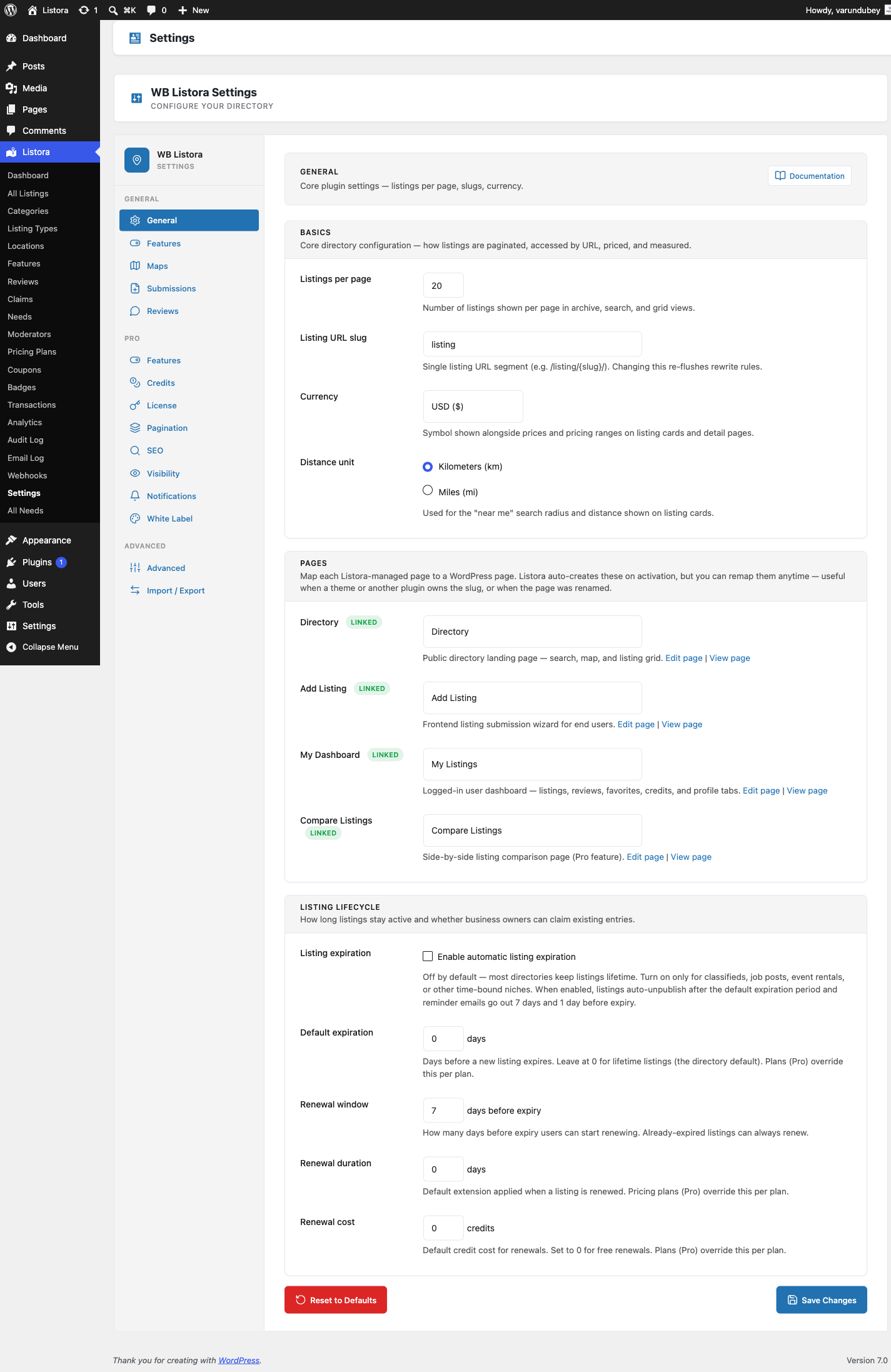
Basics
| Setting | What it does |
|---|---|
| Listings per page | How many listings show per page in archive, search and grid views. |
| Listing URL slug | The address segment of a single listing, for example /listing/{slug}/. Changing it refreshes your permalinks. |
| Currency | The symbol shown with prices and price ranges on cards and listing pages. |
| Distance unit | Kilometers (km) or Miles (mi), used for the distance on cards and in search results. |
Listing Lifecycle
| Setting | What it does |
|---|---|
| Enable automatic listing expiration | Off by default, because most directories keep listings for good. Turn it on for classifieds, job posts and other time-bound listings. Listings then unpublish after the default expiration period, and reminder emails go out before they do. |
| Default expiration | Days before a new listing expires, when neither its listing type nor its plan (Pro) sets a period. New listings follow this value. Leave it at 0 for listings that never expire. |
| Renewal window | How many days before expiry a member can start a renewal. Listings that have already expired can always be renewed. |
| Renewal duration | How many days a renewal adds. Set it to 0 to use the default expiration period. With both at 0 the listing never expires. A pricing plan (Pro) can set its own. |
| Renewal cost | Credits a renewal costs. Set it to 0 for free renewals. A pricing plan (Pro) can set its own. |
The length of a listing is taken from its plan (Pro) first, then its listing type (set in the Listing Type editor), then Default expiration.
Where other settings live
- Terms of service and the mobile app legal links are under Settings > Advanced. See Advanced Settings.
- Maps have their own tab. See Map Settings.
- Listing limits per role are under Settings > Credits > Limits. See Submission Settings.
- Re-run setup (the Setup Wizard) is under Settings > Advanced > Setup wizard.
One Save Changes per tab
Each settings tab has one Save Changes button that saves everything on that tab. If you leave a tab with changes you have not saved, the browser asks you to confirm. Reset this tab puts only the current tab back to its defaults, after a confirmation. The tabs are grouped by task (Directory, Monetization, Communication, Advanced). On screens narrower than 1200px the groups become a tab bar across the top.
Related
- Installation & Activation
- Setup Wizard
- Submission Settings - the form that uses the terms link
- Map Settings - tile source, also published to connected apps