Compare Listings
Pro feature. Available in Listora Pro.
Availability: Pro only. Requires Listora Pro. Let visitors pick 2-4 listings and view them side by side in a clean comparison table - core info, pricing, features, ratings, services, hours, grouped by listing type so apples are compared with apples. Selections persist across the site via localStorage; a floating bar shows current selections and offers a one-click "Compare now" jump.
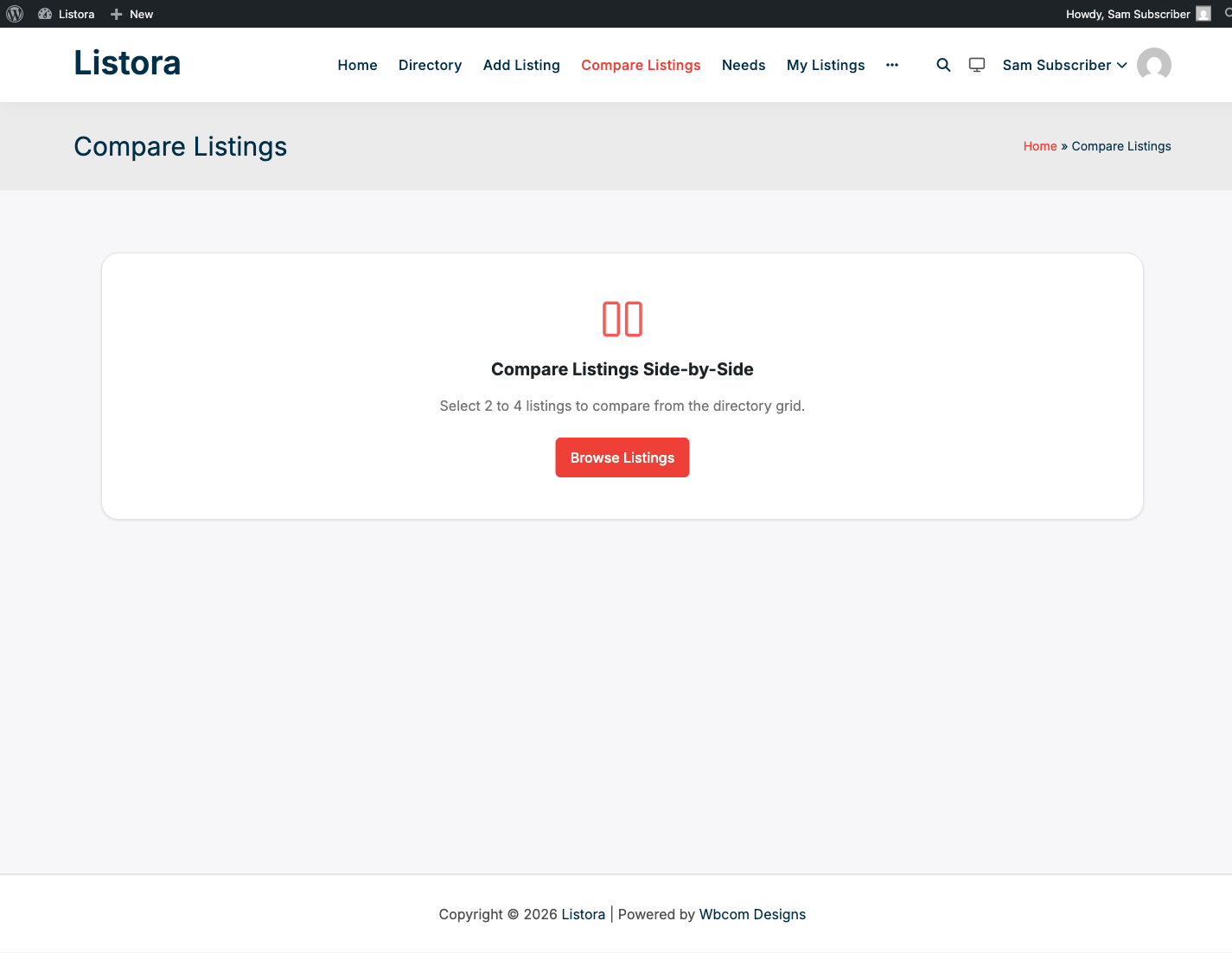
What it is
For high-consideration directory categories - picking a hotel, comparing real-estate listings, evaluating two doctors - visitors don't decide from a list view. They want a table. Compare Listings gives them that table without leaving the site.
The feature is a self-contained system:
- A native
listora-pro/comparisonGutenberg block renders the side-by-side table - placed on a dedicated "Compare Listings" page that the activator auto-creates. - A "Compare" toggle on every listing card + detail page (rendered via the
wb_listora_card_actionsandwb_listora_after_listing_fieldshooks) lets visitors add or remove a listing from their comparison set. - A floating comparison bar at the bottom of every page shows the current selection (2-4 listings), with a "Compare now" button that jumps to the comparison page.
- Selection state is stored in
localStorage, so visitors can keep browsing - open new tabs, follow links - and their comparison set survives. - Listings are grouped by type in the comparison table - restaurants under one heading, hotels under another - because comparing a restaurant against a hotel field-by-field isn't useful.
- The comparison page also reachable via URL (
/compare-listings/?compare=ID1,ID2,ID3) so visitors can share a comparison link. - REST routes
GET /listora/v1/compareandPOST /listora/v1/compare/previewpower the table data + the floating-bar preview (public endpoints). - Field groups in the table are configurable per block via Inspector controls: Core / Pricing / Features / Ratings / Services / Hours.
How you use it
As a site owner - enable + place
- Enable the feature: Listora → Settings → Features → Comparison (default: on since 1.1.0 - turn it off if you don't want this UX).
- Verify the auto-created page: WP Admin → Pages → look for Compare Listings. The activator ensures it exists with the
listora-pro/comparisonblock. If it's missing or has the wrong block, click Pages → Add New, title it "Compare Listings", and insert the block manually. - Customize what gets compared (optional): in the block editor, select the Comparison block and use Inspector → Field Groups to toggle which sections appear (Core, Pricing, Features, Ratings, Services, Hours).
- Confirm the Compare button is showing on listings: visit a listing card in your directory; the "Compare" toggle should appear in the card-actions row.
As a visitor - compare two listings
- Browse the directory → click Compare on a listing card. The toggle becomes "Selected" + the floating bar appears at the bottom of the screen showing "1 listing selected".
- Add 1 to 3 more listings (max 4) the same way.
- Click Compare now on the floating bar (or visit the Compare Listings page directly).
- The table renders the listings side by side; remove any from the table via the in-row "Remove" button. Listings of different types compare in one table, every listing side by side. Earlier versions split the view into a separate table per type, which defeated the point of comparing - a restaurant and a hotel ended up in two tables you could not read across. A row a given listing has no value for is simply blank.
- To clear all selections, click Clear on the floating bar.
Sharing a comparison
The Compare page reads ?compare= from the URL, so a fully-formed link like /compare-listings/?compare=42,103,257 opens those three listings directly - useful for support, sales chats, or external embeds.
Settings & options
| Setting | Location | Default | Notes |
|---|---|---|---|
| Feature toggle | Settings → Features → Comparison | On | On by default since 1.1.0 - turn off intentionally |
| Compare page | (auto-created on activation) | /compare-listings/ |
Idempotent - the activator verifies the page exists with the right block |
| Block field groups | Inspector → Field Groups | All 6 enabled | Per-block override; same Compare page can host multiple blocks with different field selections |
| Max selections | (system) | 4 | Hardcoded UX limit; comparison tables wider than 4 columns hurt readability |
| Storage | localStorage |
- | Cleared by the visitor's browser settings; not synced across devices |
REST routes (public):
GET /wp-json/listora/v1/compare?ids=42,103- returns the full comparison dataPOST /wp-json/listora/v1/compare/preview(body:{ids:[42,103]}) - lightweight data for the floating-bar preview
Related
- Listing Detail - the source for the per-field data shown in the table.
- Listing Types - type grouping in the table comes from your registered listing types.
- Quick View Modal (Pro) - a lighter alternative for previewing a single listing without leaving the grid.
- Developer Reference: REST API - for the
/compareroute shape.