How to Migrate from GeoDirectory to Listora
Moving your directory website from GeoDirectory to Listora is straightforward. Listora includes a built-in GeoDirectory migrator that transfers your listings, categories, locations, reviews, geo data, and custom fields automatically - no CSV exports or manual re-entry required.
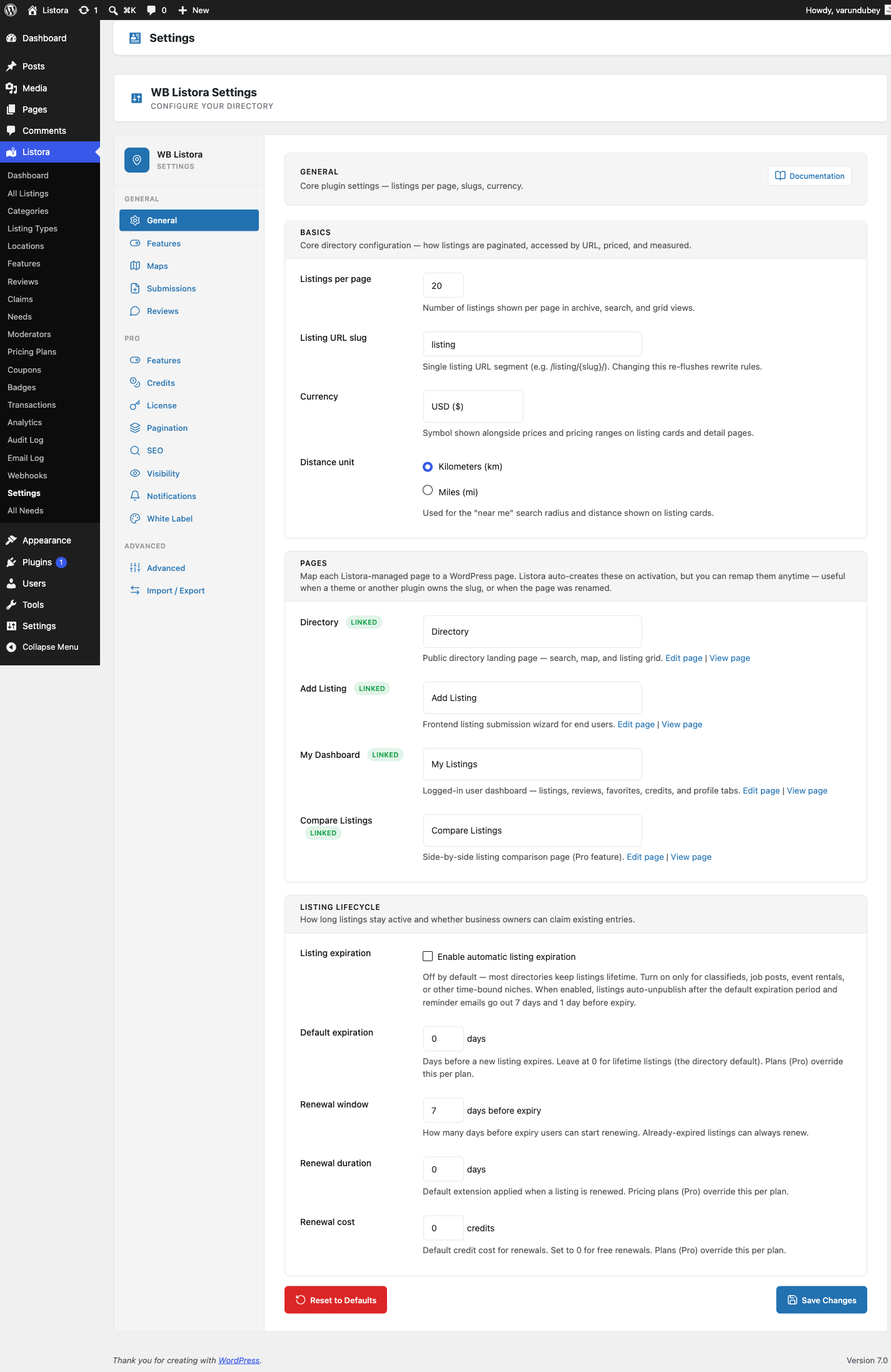
This guide walks you through the full migration process, explains what gets transferred, and highlights the features you gain by switching.
Why Switch from GeoDirectory to Listora?
GeoDirectory is one of the older WordPress directory plugins on the market. It works, but many of its most useful features are locked behind paid add-ons that can add up quickly.
Listora was built to deliver a complete directory experience in the free version. Features that GeoDirectory charges extra for - reviews, claims, events, advanced search, custom fields per listing type, and frontend submission - are all included at no cost.
Feature Comparison: GeoDirectory vs Listora
| Feature | GeoDirectory (Free) | GeoDirectory (Paid Add-ons) | Listora (Free) |
|---|---|---|---|
| Listing types | 1 (Places) | Multiple via paid add-on | 10 pre-built types |
| Custom fields per type | Basic | Advanced via paid add-on | Full field system included |
| Reviews & ratings | Basic stars only | Multi-criteria via paid add-on | Star ratings, helpful votes, owner replies, moderation |
| Claim listings | Not included | Paid add-on (~$59) | Included free |
| Frontend submission | Basic | Advanced via paid add-on | Multi-step wizard with validation |
| User dashboard | Not included | Paid add-on | Included free |
| Events & calendar | Not included | Paid add-on (~$79) | Calendar block included |
| Business hours | Basic | Advanced via paid add-on | Weekly schedule with "open now" filter |
| CSV import/export | Basic | Advanced via paid add-on | Full import/export with column mapping |
| JSON / GeoJSON import | Not available | Not available | Included free |
| Gutenberg blocks | Limited | Some via paid add-ons | 11 blocks included |
| Interactivity API | No (jQuery-based) | No | Yes, no jQuery dependency |
| Schema.org structured data | Basic | Advanced via paid add-on | Automatic JSON-LD included |
| WP-CLI commands | Not available | Not available | Full CLI: stats, reindex, import, export |
| REST API | Limited | Limited | 58 endpoints included |
What Does This Mean for Your Budget?
To match the features Listora offers for free, you would typically need to purchase several GeoDirectory add-ons. The Claim Manager, Event Manager, Advanced Search, and Multi-location add-ons alone can cost over $200 per year. With Listora, these features come standard.
Before You Begin
Before starting the migration, take these precautions:
- Back up your database. Use a plugin like UpdraftPlus or run
wp db exportfrom the command line. - Keep GeoDirectory installed (active or inactive). The migrator reads directly from GeoDirectory's database tables, so the data needs to be present. You do not need GeoDirectory to be active - the migrator detects its data tables regardless.
- Install Listora. Download it from the Listora downloads page, upload it under Plugins > Add New > Upload Plugin and activate it. Run through the setup wizard to configure your basic settings.
Step-by-Step Migration Guide
Step 1: Install and Activate Listora
Install Listora from the WordPress plugin repository. After activation, the setup wizard will guide you through initial configuration - listing types, default location settings, and page creation. Complete the wizard before migrating.
Step 2: Open the Migration Tool
Navigate to Listora > Tools > Migration in your WordPress admin. The plugin automatically scans for data from supported directory plugins. If GeoDirectory data is detected, you will see a "GeoDirectory" source card showing the number of listings available for migration.
Step 3: Review the Pre-Migration Summary
Click the GeoDirectory source to see a breakdown of what will be migrated:
- Listings - All published, pending, and draft listings from GeoDirectory's detail table.
- Categories - Mapped to Listora's
listora_listing_cattaxonomy. - Locations - Geographic data (latitude, longitude, address, city, state, country) migrated to Listora's geo index table.
- Reviews - Star ratings and review text transferred to Listora's reviews system.
- Images - Featured images and gallery attachments linked to the new listings.
- Custom fields - GeoDirectory custom field values mapped to Listora's field system.
Step 4: Run the Migration
Click Start Migration to begin. The process runs in batches of 50 listings to avoid memory issues. A progress bar shows the current status. Each listing is checked for duplicates - if you run the migration again, already-migrated listings are skipped automatically.
You can also run the migration via WP-CLI for large sites:
wp listora migrate --source=geodirectory --batch-size=100
Step 5: Verify Your Data
After migration completes, check your listings:
- Visit Listora > Listings to browse all migrated entries.
- Open individual listings to verify categories, location data, and custom fields.
- Check the frontend to confirm reviews and ratings appear correctly.
- Test the map to ensure geo coordinates transferred properly.
Step 6: Rebuild the Search Index
Run a full reindex to ensure all migrated listings appear in search results:
wp listora reindex --all
Or trigger a reindex from the admin at Listora > Tools > Reindex.
What Gets Migrated
| Data Type | Source (GeoDirectory) | Destination (Listora) |
|---|---|---|
| Listings | gd_place CPT + detail table |
listora_listing CPT + meta |
| Categories | gd_placecategory taxonomy |
listora_listing_cat taxonomy |
| Tags | gd_place_tags taxonomy |
Post tags |
| Locations | Detail table lat/lng columns | listora_geo table |
| Reviews | GeoDirectory reviews | listora_reviews table |
| Images | Post thumbnail + gallery | Post thumbnail + gallery |
| Custom fields | Detail table columns | Listora field index + meta |
| Business hours | If present in detail data | listora_hours table |
What Does Not Get Migrated
- GeoDirectory add-on specific data - Pricing packages, paid listing plans, and payment transactions are not migrated since Listora handles these differently in the Pro version.
- GeoDirectory shortcodes - Any pages using GeoDirectory shortcodes will need to be updated with Listora blocks. The block editor makes this simple - just add the appropriate Listora block (grid, search, map, etc.) to your pages.
Frequently Asked Questions
Can I run the migration with GeoDirectory deactivated?
Yes. The migrator reads directly from the database tables, not through GeoDirectory's API. As long as the tables and posts exist in the database, migration works regardless of plugin status.
Will migration break my existing GeoDirectory listings?
No. The migration creates new Listora listings. Your original GeoDirectory data is never modified or deleted. Both plugins can coexist during the transition.
How long does migration take?
For most sites, migration completes in under a minute. Sites with thousands of listings may take several minutes. The batch processing system prevents timeouts.
Can I migrate only specific listing types?
The current migrator imports all GeoDirectory listings. After migration, you can reassign listing types within Listora's admin.
What about my SEO rankings?
Listora generates Schema.org JSON-LD structured data automatically, which helps maintain search visibility. You should set up 301 redirects from your old GeoDirectory URLs to the new Listora URLs to preserve link equity.
Ready to Switch?
Download the free Listora plugin from wbcomdesigns.com and use the built-in migration tool to bring your GeoDirectory data over in minutes. No data loss, no manual re-entry, and you get access to reviews, claims, events, frontend submission, and 11 Gutenberg blocks - all at no cost.