Google Maps
Pro feature. Available in Listora Pro.
Availability: Pro only. Requires Listora Pro. Without Pro, maps use the tile source you choose under Listora > Settings > Maps. Listora ships no default tile server.
What it does
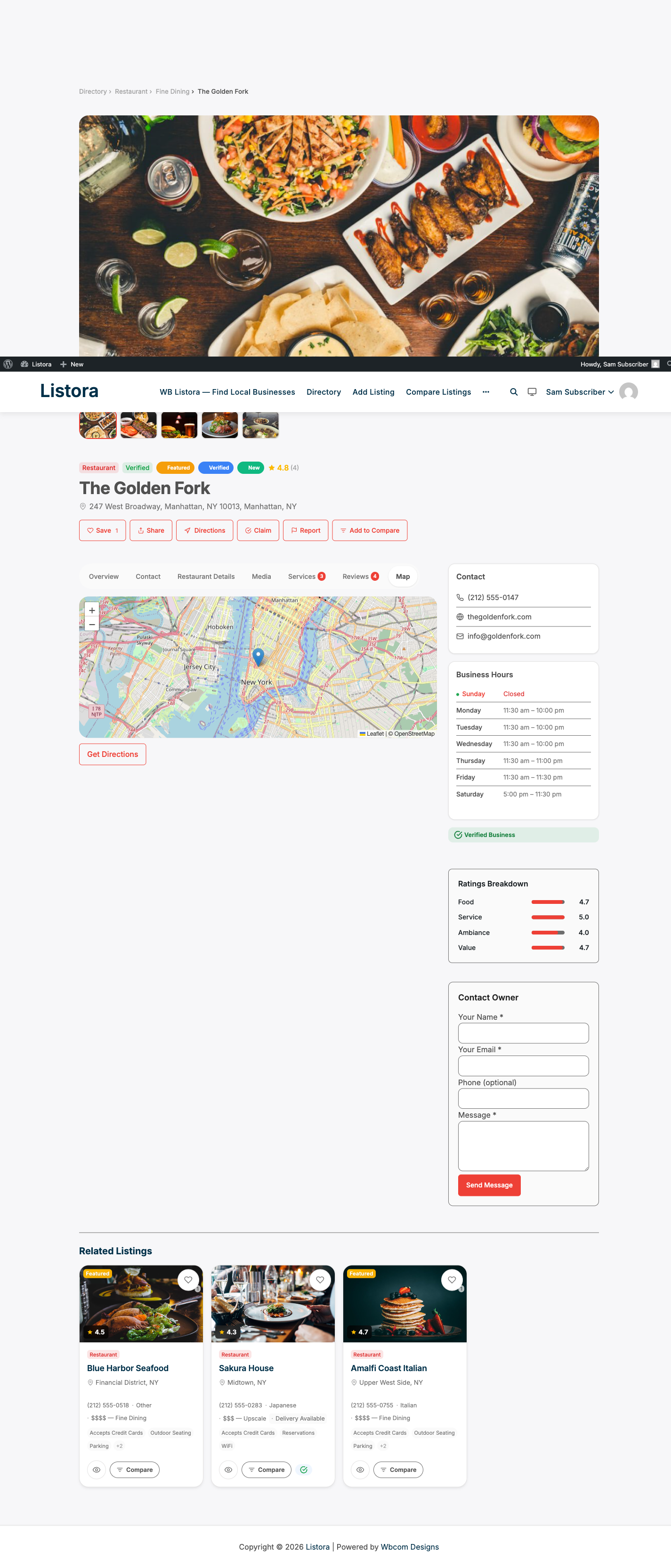
Listora Pro replaces your Settings > Maps tile source with Google Maps. Every map block on your site - the directory map, the listing detail map, and address fields in the submission form - switches to Google Maps automatically once you add your API key.
Why you'd use it
- Google Maps is the map most visitors recognize and trust.
- Marker clustering groups nearby listings into a single bubble, keeping the map readable when many listings are in the same area.
- Google Places autocomplete on address fields helps submitters enter accurate addresses with fewer errors.
- Custom map styles let you match the map's color palette to your brand.
How to use it
For site owners (admin steps)
Step 1: Get a Google Maps API key
- Go to the Google Cloud Console.
- Create a project (or select an existing one).
- Under APIs & Services → Library, enable these APIs:
- Maps JavaScript API (required for the map blocks)
- Places API (required for address autocomplete in the submission form)
- Geocoding API (required for converting typed addresses to coordinates)
- Go to APIs & Services → Credentials, click Create Credentials → API Key, and copy the key.
- Restrict the key to your site's domain under API key restrictions → HTTP referrers.
Step 2: Enter the key in Listora Pro
- Go to Listora → Settings → Map.
- Set Map Provider to Google Maps.
- Paste your API key into the Google Maps API Key field.
- Click Save Settings.
Step 3: Verify
Visit any page with a map block. The map should now show Google Maps tiles instead of your chosen tile source. The Listing Submission form's address field should show a Google Places autocomplete dropdown as you type.
Marker clustering: Clustering is enabled by default. Zoom in on the map to expand clusters into individual markers.
Custom map styles: To apply a custom color style (e.g., a dark mode map or brand colors):
- Generate a style JSON array from snazzymaps.com or Google's Map Styling Wizard.
- Go to Listora → Settings → Map and paste the JSON into the Custom Map Styles field.
- Save. The style applies to all maps on your site.
Tips
- Restrict your API key to your production domain only. Use a separate unrestricted key for local development.
- Google Maps usage is billed by Google after a monthly free tier. For most directories, the free tier is sufficient - check Google Maps Platform pricing to estimate costs before going live.
- If you don't need Google Places autocomplete (e.g., you pre-fill addresses for all listings), you can disable the Places API to reduce API usage.
- Marker clustering is handled by the open-source
@googlemaps/markerclustererlibrary bundled with Pro - no additional API cost. - The map provider setting applies globally to all map blocks. You cannot mix Google Maps on one page and another tile source on another.
Common issues
| Symptom | Fix |
|---|---|
| Map shows a gray box with "For development purposes only" watermark | The API key is not entered or is incorrect - check Listora → Settings → Map |
| Address autocomplete not working in submission form | Ensure the Places API is enabled in Google Cloud Console for your key |
| Map loads but markers don't appear | Geocoding may have failed on some listings; re-save those listings to trigger geocoding |
| Custom styles not applying | Validate your style JSON at jsonlint.com - invalid JSON is silently ignored |
Related features
Country and geocoding
Google geocoding passes the country's ISO code, so listings in one country file under a single country term.