Lead Forms
Pro feature. Available in Listora Pro.
Availability: Pro only. Requires Listora Pro. Free ships a basic Contact Form; Pro's Lead Form replaces it automatically (via the
wb_listora_render_contact_formfilter) and adds tracked analytics, custom fields, and integrations.
What it does
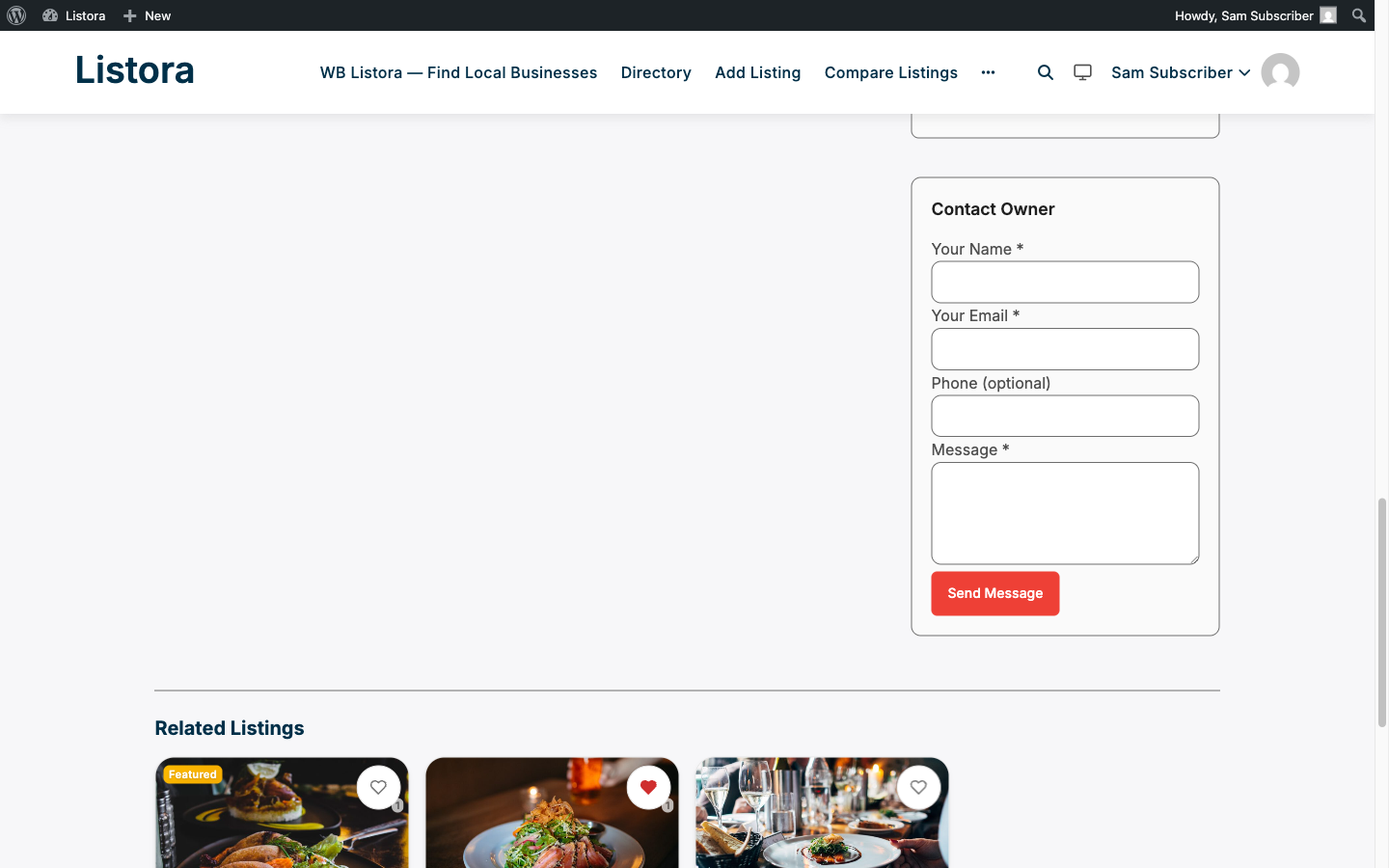
Lead forms add a Contact Owner form to every listing detail page. When a visitor submits the form, an email is sent directly to the listing owner. No message data is stored in the database - only an aggregate lead count is tracked for analytics.
Why you'd use it
- Listing owners receive inquiries directly to their inbox, increasing the value of having a listing.
- Guests and logged-in users can both send messages - no account required.
- GDPR-friendly: contact messages are emailed and not stored permanently as database records.
- Lead count appears in the listing owner's analytics dashboard, showing how many contact attempts their listing generated.
How to use it
For site owners (admin steps)
Lead forms are enabled automatically with Listora Pro. They appear on all listing detail pages by default.
What the owner receives:
An email notification containing:
- Sender's name and email address.
- Sender's phone number (optional field).
- Message text.
- A link back to the listing.
The email is sent to the listing author's WordPress user email address.
Email template: The lead notification email uses the template at templates/emails/lead-notification.php inside the Pro plugin. Themes can override it by placing a file at {theme}/wb-listora/emails/lead-notification.php.
Editing the email: The lead email is the New enquiry event under Listora → Settings → Notifications. You can switch it off, edit its subject and body, and preview it there. Every lead email is listed in Listora → Tools → Email Log. See Pro Emails.
Spam protection: The form includes a honeypot field (hp) to filter automated bot submissions. Rate limiting applies at the REST level - repeated submissions from the same IP within a short window are rejected.
For end users (visitor/user-facing)
- Navigate to a listing detail page.
- Find the Contact Owner form in the listing's contact tab or sidebar.
- Fill in:
- Name (required)
- Email address (required)
- Phone number (optional)
- Message (required)
- Click Send Message.
- A success confirmation appears. The listing owner receives the email immediately.
Tips
- Remind listing owners to check their email spam folder for lead notifications - depending on their email provider, automated WordPress emails may be filtered.
- Configure WordPress to send email via an SMTP service (Mailgun, SendGrid, Postmark) to improve deliverability. Use a plugin like WP Mail SMTP.
- Lead counts appear as Leads in the listing owner's Analytics tab and on the Listora dashboard's last-30-days row. Point owners there to show them how many inquiries their listing is generating.
- To disable lead forms on specific listing types, use the
wb_listora_after_listing_fieldsaction priority - the form renders at priority 10, so hooking at a lower priority withreturn falseis not sufficient. Instead, use a custom check inside a child class or a conditional filter on the form output.
TODO: Confirm whether lead forms can be disabled per listing type from the admin settings, or only via code.
Common issues
| Symptom | Fix |
|---|---|
| Contact form not visible | Confirm Listora Pro is active and the license is valid |
| Owner not receiving emails | Check WordPress mail configuration; test with WP Mail Check |
| "Too many requests" error | Rate limiting triggered - the visitor has submitted too many messages in a short time |
| Form submits but no email arrives | The listing's author may have no email address set in Users → Edit User |